Understanding and Translating OSD Labels in POEditor
In this article:
Understanding translation labelsCa
Managing translation work in POEditor
This article is relevant to:
ISOlutions OSD national pilot members responsible for translating user interface labels, including:
- Users granted access to POEditor projects
- National Standards Body (NSB) translators
- National committee members contributing to translations
- Translation coordinators working across member bodies
Understanding translation labels
Translating the National OSD user interface involves more than converting words into another language. It requires understanding how translation labels function and coordinating translations across member bodies.
Why translation labels matter
Translation labels determine how the National OSD interface appears in your language. Accurate translations ensure users see correct terminology in:
- Menus
- Buttons
- Messages
- Field names
- Document elements
If multiple member bodies share the same language, collaboration is essential to maintain consistent terminology and avoid duplicate or conflicting translations.
If your language has never been translated in previous ISOlutions software, many labels will require initial translation in POEditor.
What is a label?
A label is any predefined text already present in the interface before users add their own content.
Examples include:
- Headings
- Buttons
- Field names
- System messages
These labels must be translated in POEditor for the National OSD interface to display correctly in your language.


Translating labels correctly
Each interface label has a corresponding entry in POEditor where translations are added.

- The grey text shown beneath a label is informational only.
- It provides context and must not be translated.

Translating the right label
The same words may appear in multiple places as they may represent different labels.
For example:
- “Part Number” may exist in several contexts.
- “Working area” may appear in different sections of the interface.
Each instance has its own label ID and must be translated individually. Always verify the label ID to ensure the correct translation is applied.

When you cannot find a label in the interface
Some labels may not be immediately visible because:
- They appear in workflows you have not accessed
- They are shown only in specific situations
- They are used internally within the system
POEditor may still list these as translatable labels.

What should not be translated
Only translate visible text.
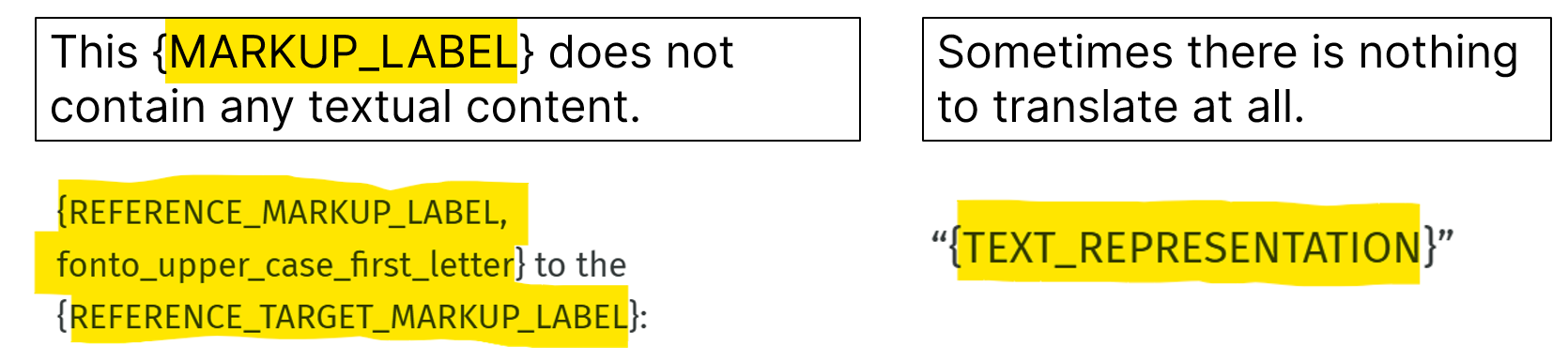
Do not translate anything inside curly brackets: { }
These elements are system variables used by the application. If modified:
- The system cannot interpret the variable and errors may occur
- Translations for the entire language may fail
Some labels may contain only markup (for example {MARKUP_LABEL} ) and therefore require no translation.
Introduction to POEditor
POEditor is the tool used to manage translations for ISOlutions OSD and related ISO applications.
Getting access
- Users contributing to translations will receive an invitation to join POEditor.
Multiple projects and languages
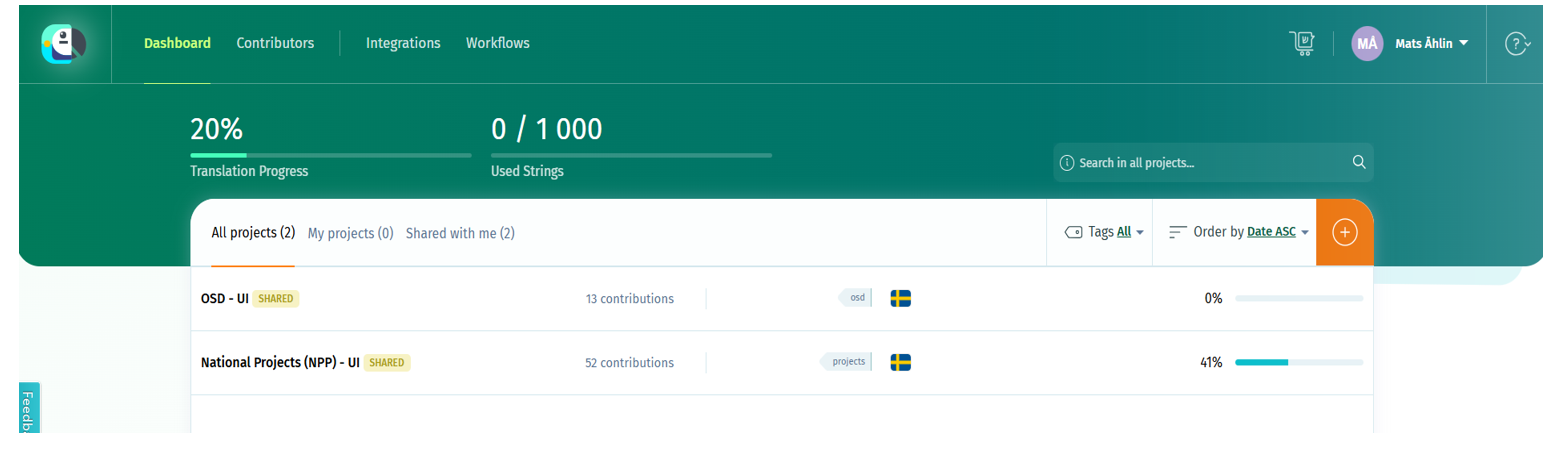
- You may see several projects depending on your responsibilities, such as: OSD UI, National Project Portal (NPP) UI, ISO-specific components
- If you translate multiple languages, each language will appear within relevant projects.
Types of labels you will translate in the POEditor
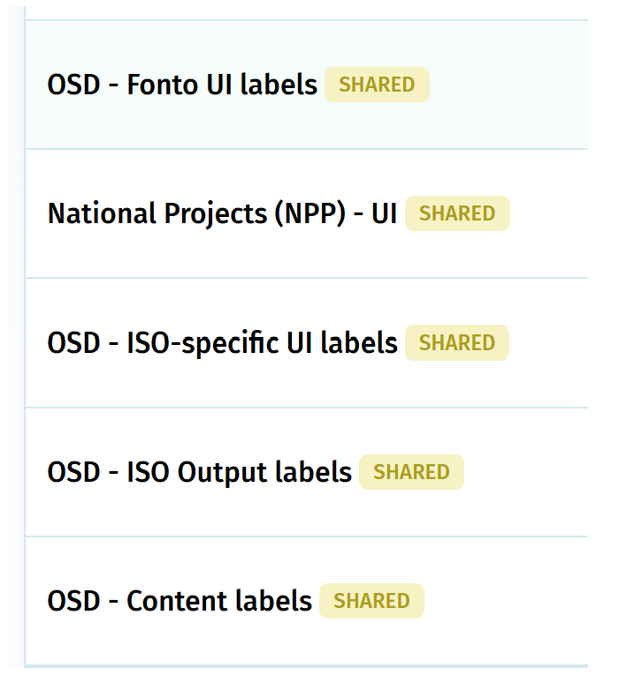
For OSD functionality, typical label categories include:
Labels from systems that work together to deliver OSD functionality
- National Project Portal (NPP)
- OSD Editor
- OSD roles and tools
- Dictionaries
Labels in Fonto Editor UI
Labels displayed inside the document editor
- Labels shared between ISO and IEC
-
Labels used by ISO only
(IEC has additional UI labels used only in IEC systems.)
Backend labels
- Labels used only by ISO, managed by backend systems rather than Fonto.
Labels used inside documents
-
This requires translating the labels that appear within the document itself (Specific to ISO.).
-
You may see the OSD interface in English but want the document in your local language.
Output labels
- Labels that appear in the rendered output or preview versions of the document. (Specific to ISO.)
Managing translation work in POEditor
Tracking progress
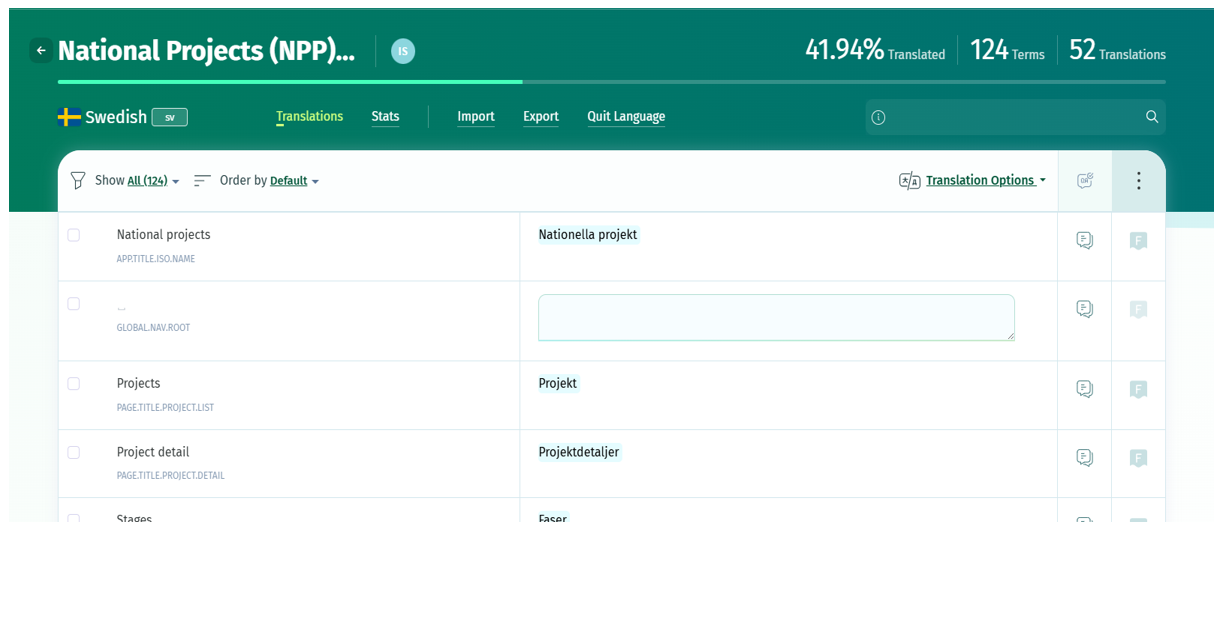
POEditor displays translation progress for each project, including:
- Percentage translated
- Total number of terms
- Number of completed translations
This helps identify areas requiring additional work.
Filtering and sorting
Filtering options
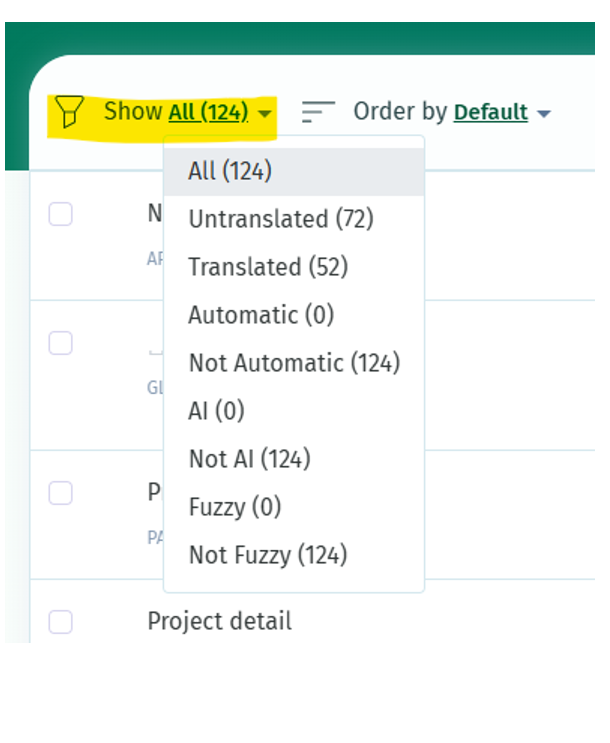
You can filter terms by status:
- Untranslated
- Translated
- Fuzzy
- Automatic
- AI
- Not AI
-
Sorting options
Terms can be sorted by:
- Updated (ASC/DESC)
- Untranslated first
- Automatic first
- AI first
- Fuzzy first
- Alphabetical order
- Last commented
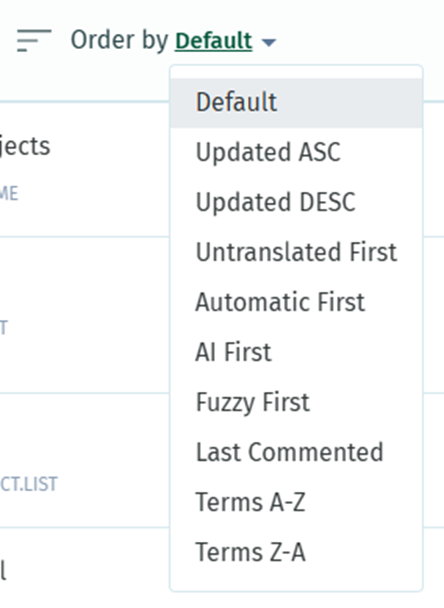
These tools help organize translation workflows efficiently.
Fuzzy translations
After initial translation, labels may change across system versions. A label becomes Fuzzy when:
- Its context changes
- Its wording is updated
- It appears in a new location
When a label is marked Fuzzy:
- Review the translation
- Confirm it still fits the context
- djust wording if necessary
Optional POEditor features
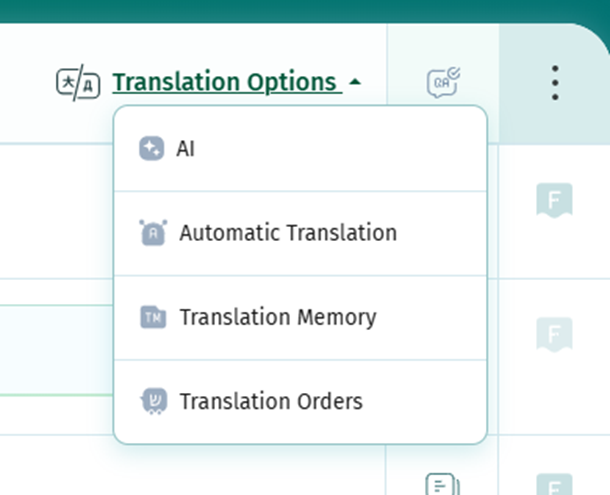
POEditor includes features such as:
- AI assistance
- Automatic translation
- Translation memory
- Translation orders
These add-on tools are currently not enabled in the ISO installation.
Translation process during MVP
Process for translating labels
There is no direct live connection between POEditor and OSD National.
Before each release:
- New or updated labels are added to POEditor projects.
- Translators can:
- Find new labels by filtering untranslated items.
-
Find updated labels by filtering Fuzzy terms.
- All completed translations are uploaded during the next OSD National release.
This ensures language updates are included with each system version.
Collaboration between translators
Check whether other users are translating into the same language.
If coordination has not already occurred:
- Contact ISO for guidance.
- Translation groups may include both ISO NSBs and IEC NCs when labels are shared.
Translation groups typically self-organize to divide work collaboratively.
More information
Additional guidance is available directly within POEditor:
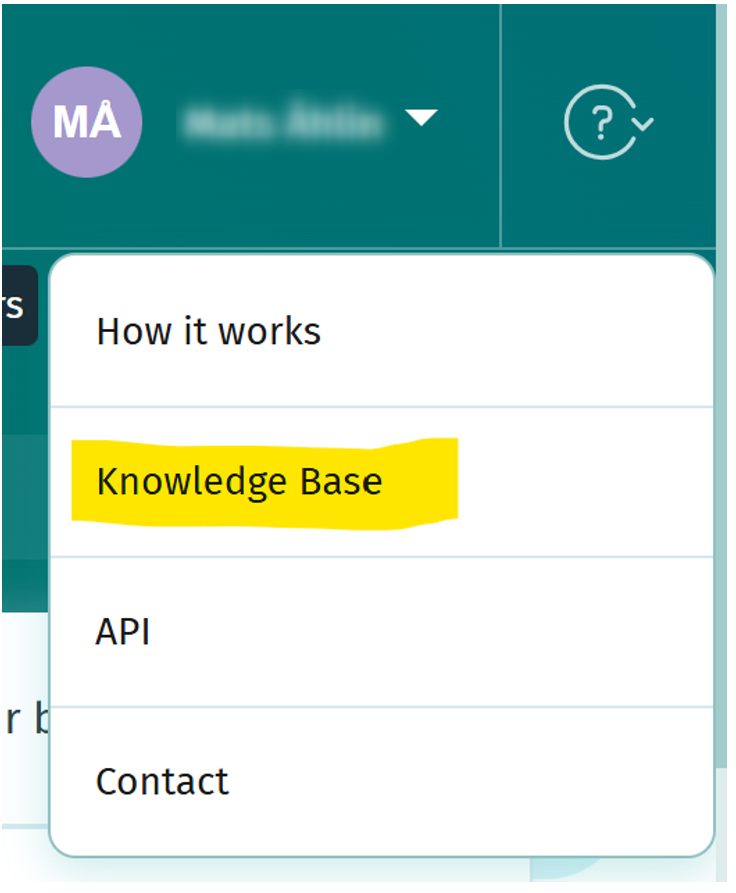
- Open the Knowledge Base from the POEditor menu.
- Access help articles, instructions, and detailed feature documentation.