Create national projects with online document
In this article:
This article describes how to create new national projects with an online document and/or enable online document for existing national projects, so as to be able to draft national standards using OSD national solution.
This article is relevant to:
ISOlutions OSD national pilot members, specifically for users, that have the required permissions needed to create national projects, including:
- User administrator(s) of the national standards body (NSB)
- National secretary of national committee(s)
- National secretary support team of national committee(s)
Create project with online document
The Project Creation Form collects the general information required to register a new national project.
To create a new project to be developed online via the National OSD solution:
-
From the navigation bar, click on the + Project button


- Complete the project attributes including:
| Attribute | Description | Mandatory or optional |
|---|---|---|
| Reference * | Specify the project reference for the national standard | Mandatory |
| Doc Number * | Specify the document number of the national standard | Mandatory |
| Part Number | Specify the part number of the national standard document | Optional |
| Edition * | Specify the edition of the national standard | Mandatory |
| Title # | Use the fields below to maintain the title of the national standard. At least one title must be specified. Optionally, multiple titles can be added by clicking on the + Add title button. |
|
|
|
Mandatory for every title added |
|
|
Mandatory for every title added |
|
|
Optional |
| Stage | The value specified here is the default first stage of national projects for your NSB. | Default |
| Committee * | Select the national committee that will develop the particular national standard. A list of all your national committees as maintained in the Global directory is available in this field. | Mandatory |
| Registration date | By default, it is set to the current date (the date when the project is being created). Click on the field, to select a different date from the calendar picker. | Optional |
| Degree of correspondence ** | Select from the list available. For the MVP -Phase 1 of the National OSD solution, only "Homegrown" national standards will be supported. Subsequently in MVP-Phase 2, national adoptions will also be supported. | Mandatory for creating national projects with an online document |
| Number of pages | Specify the number of pages that national standard will contain. | Optional |
| Price | Specify the price of the national standard. | Optional |
| National standard language ** | Select the main language of the national standard's content. | Mandatory for creating national projects with an online document |
Please note:
-
Fields marked with * are mandatory.
-
Stage field currently defaults to the first stage created for your NSB, but any stage available in your NSB’s NPP configuration may be selected
-
Degree of correspondence field currently offers only Homegrown as an option. Additional values: Identical and Modified Adoption will be available for selection in future.
-
The selected national standard language for the main language of the standard's content cannot be modified after the online document has been created.
-
Once all mandatory fields have been completed, from the bottom right corner, click on the Create button.
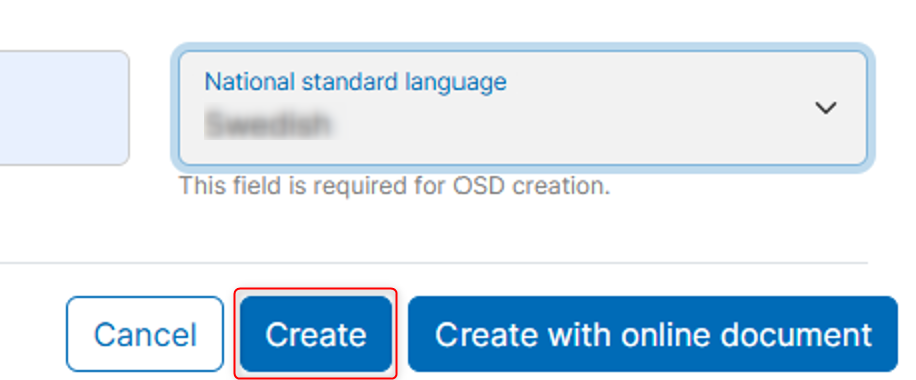
It is possible to first Create the project and activate the online document at a later stage by updating the project with the missing required information: Degree of correspondence and Main language of the national standard.
OR
-
Click the Create with online document button


Please note:
Activate online document for national project
To activate the online document for an existing national project:
- Go to the national project to view its details
-
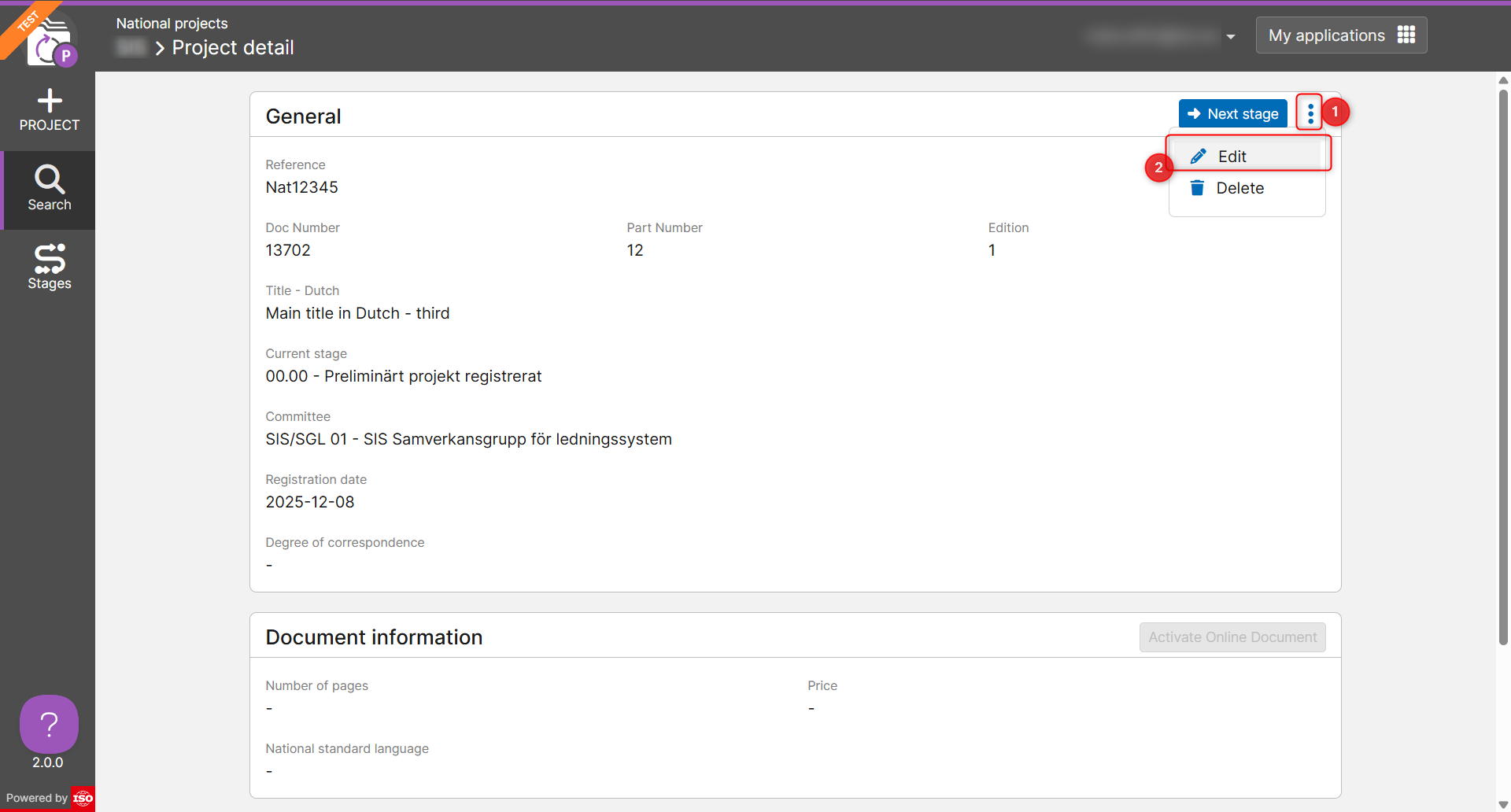
If the Activate Online Document button is disabled, it means the the mandatory fields: Degree of correspondence and National standard language have not been maintained for the national project

-
To Edit a national project, click on the three dots action menu in the General section, and select Edit
-
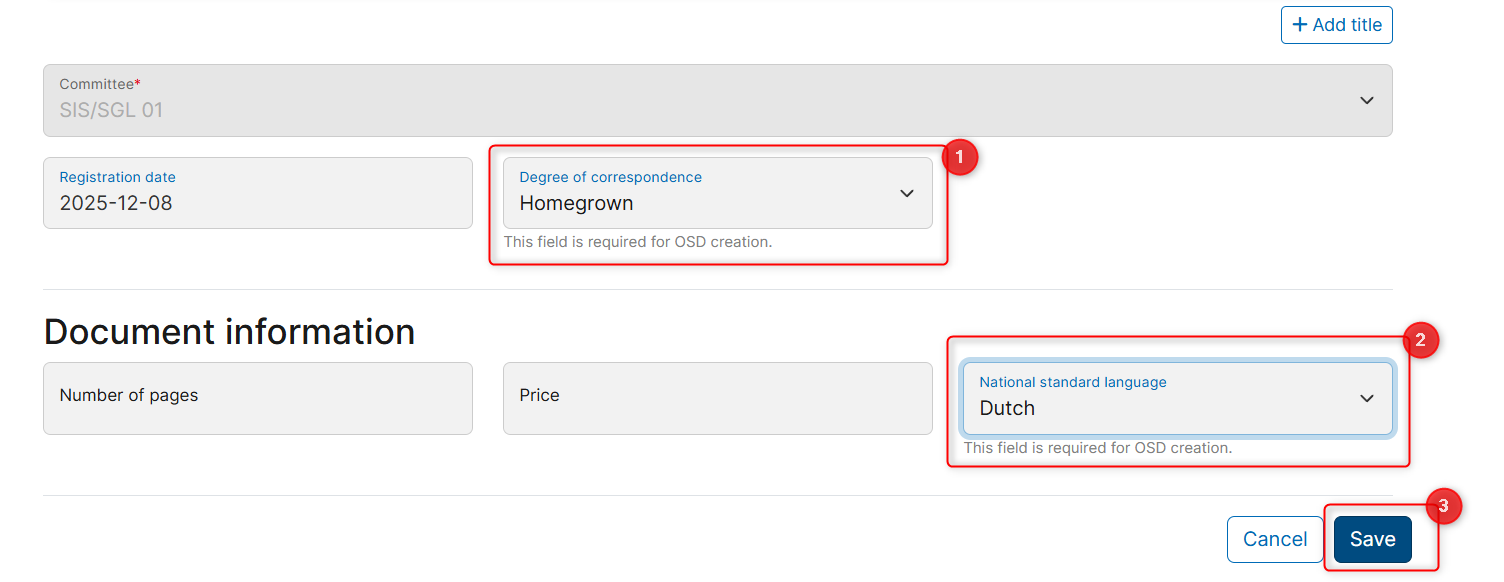
Make the required modifications to the national project, such as add the Degree of correspondence and National standard language and click on the Save button.
-
Now, click on the Activate Online Document button in the Edit project page.
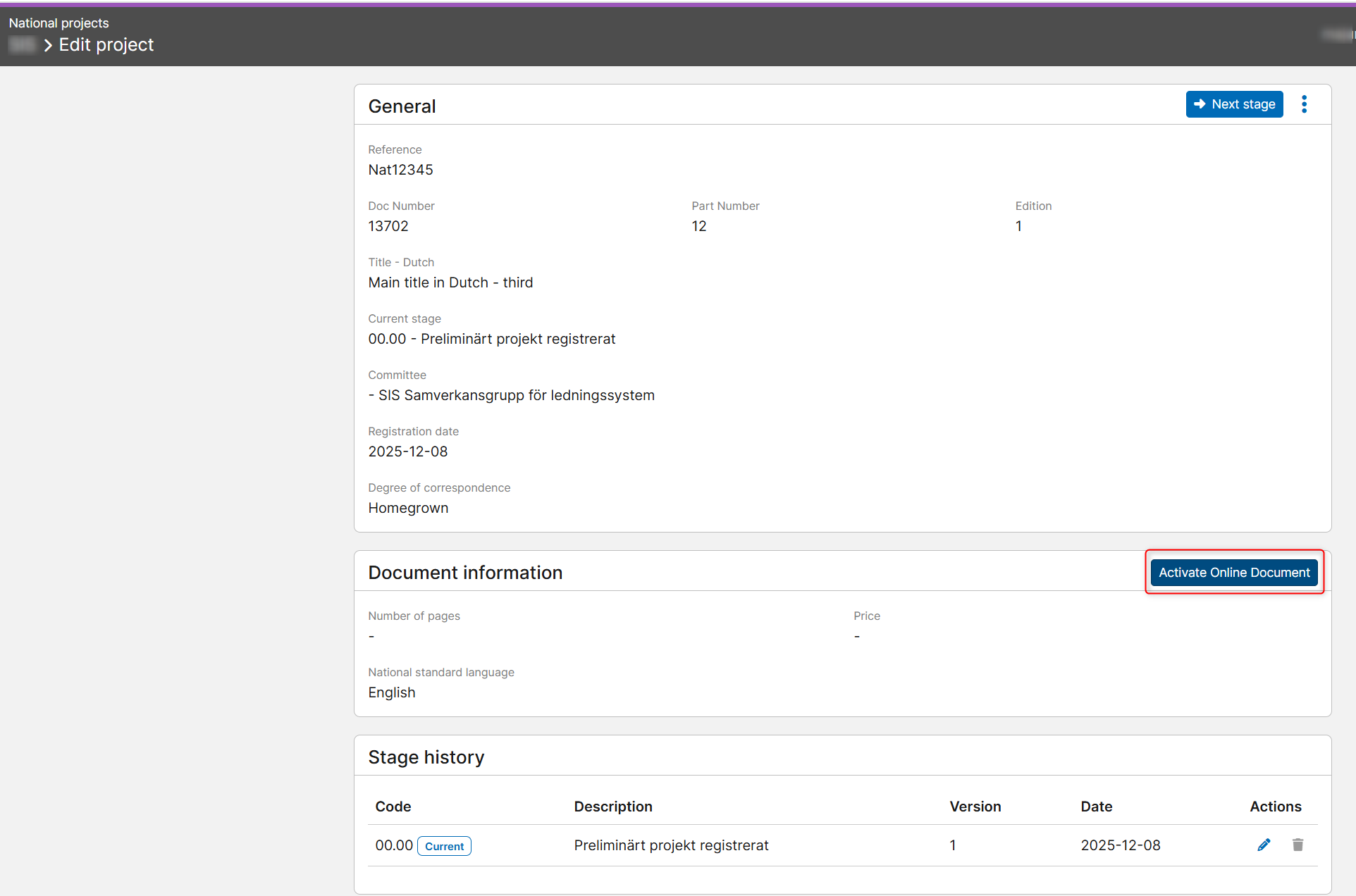
-
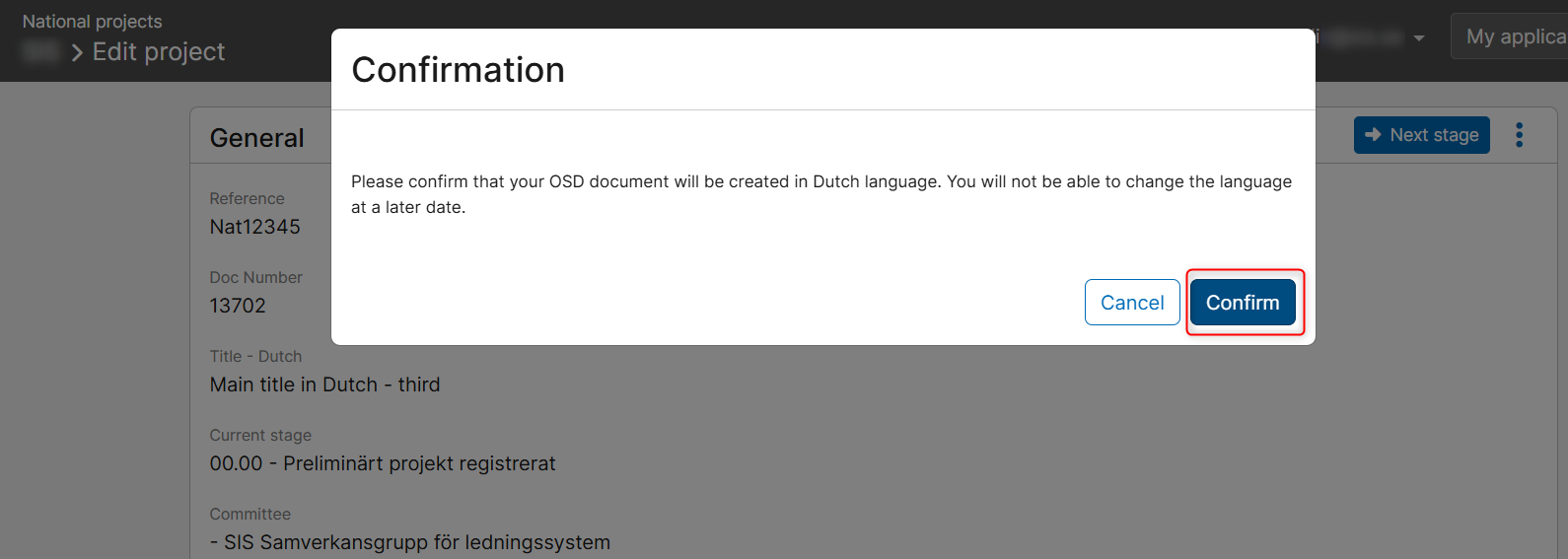
Click on the Confirm button, in the confirmation message pop-up window displayed.