
Create and manage National OSD templates
In this article:
This article is relevant to:
- NSB user administrators managing permissions and templates for for OSD national via OSD Tools
Use templates to create reusable starting content for Homegrown standards or national adoptions. A template can contain content that your NSB regularly uses, so authors do not need to recreate it for every new project.
Who can manage templates
Template management is intended for authorized NSB administrators of ISOlutions OSD pilot members. Templates are maintained in the OSD Tools and can be accessed from the National Project Portal.
Access the Templates page
-
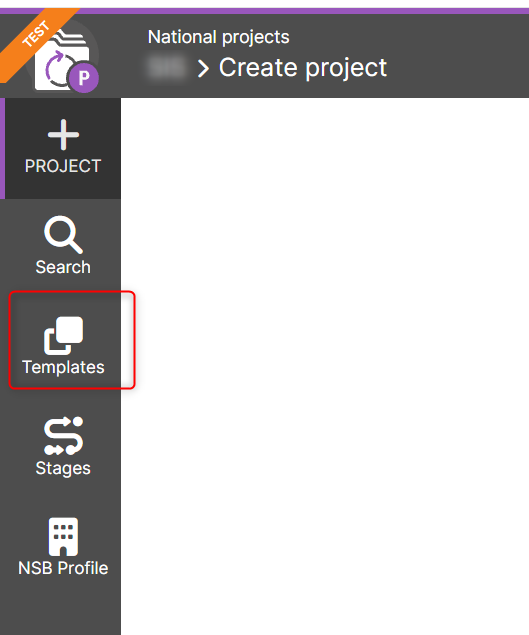
From the National Project Portal, click on Templates icon in the navigation bar
-
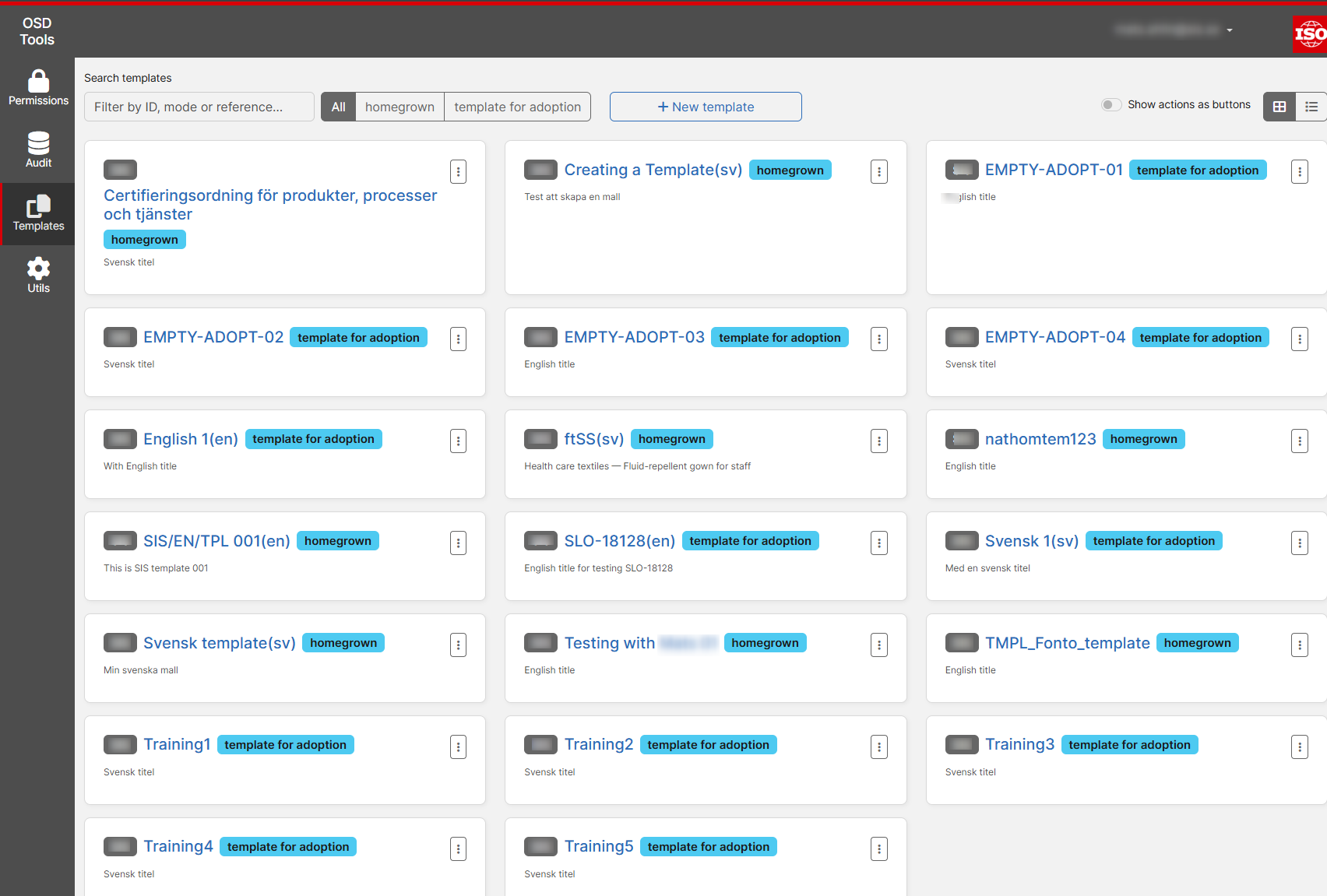
The Templates page for your NSB will open in OSD Tools.
Create a template
To create a new template:
-
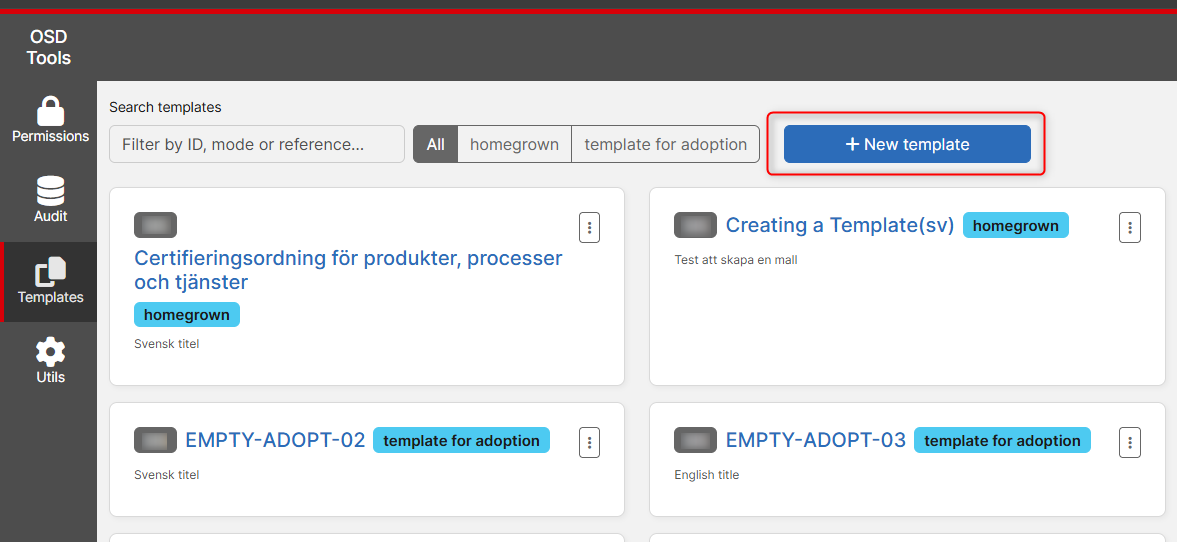
On the Templates page, click on the +New template button.
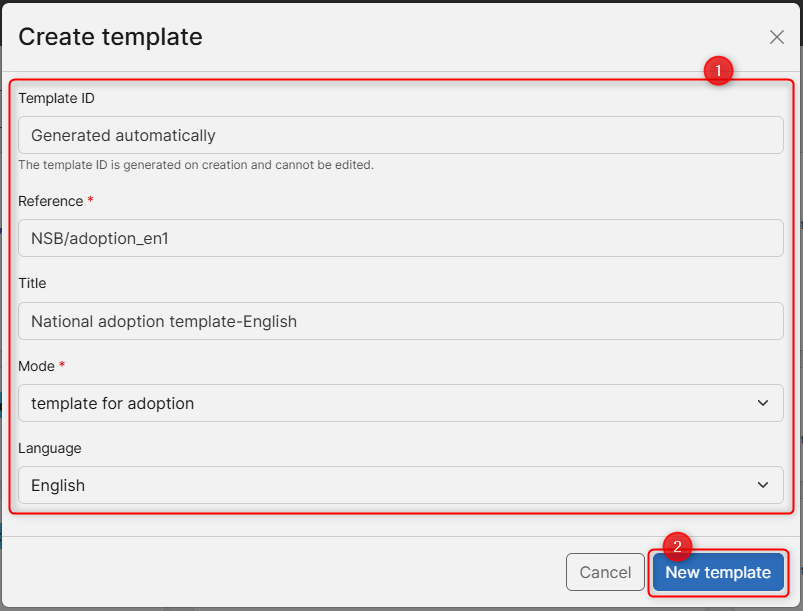
- Enter the following details:
| Field | Description |
|---|---|
| Reference |
Enter a reference (e.g. NSB/template 1) This is the value displayed in the Template selection field while creating a national project using a template. |
| Title | Enter a title for the template |
| Mode | Select whether the template will apply to homegrown or adoption |
| Language | Select a language for the template |
-
Click on the New template button
Please note:
The Template ID is assigned automatically.
Search for a template
- Use free-text search in the Search templates field to find a template using template ID, mode or reference.
-
You can also click on the mode related filters: All, Homegrown or template for adoption.

Please note
There is no fixed limit on the number of templates that can be maintained.
Edit template content
-
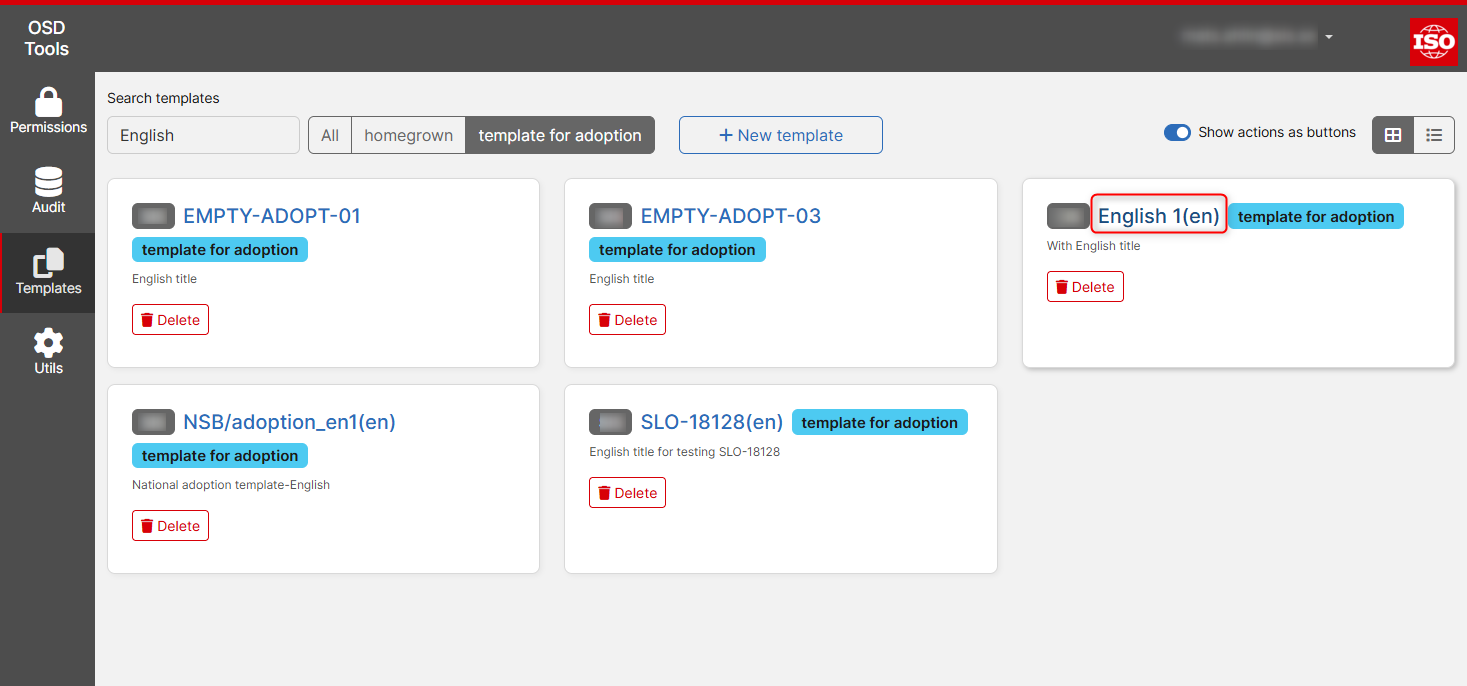
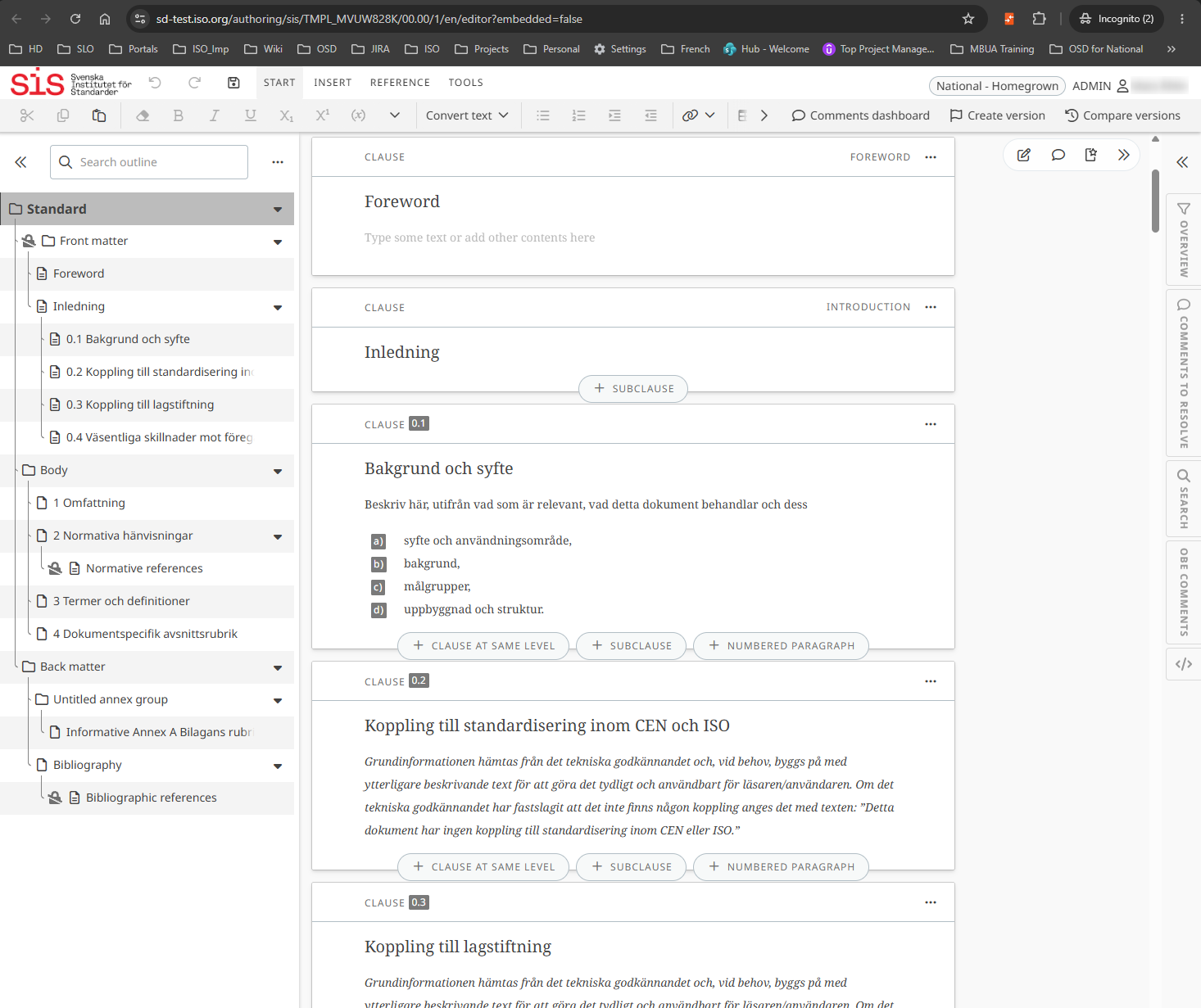
Click the template reference to open the template in OSD. The template can be authored using the same OSD editing functions available in a normal OSD document.
For example, an Adoption template can contain national introductory text or other content that your NSB regularly includes in adoptions.
Delete a template
To delete a template
-
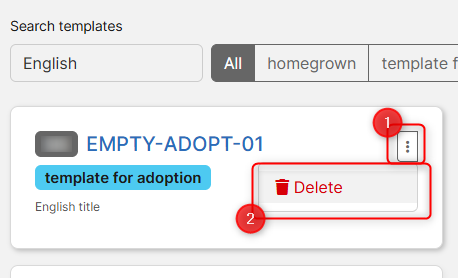
Click on the more options (three dots context menu) next to a template and select Delete
OR
-
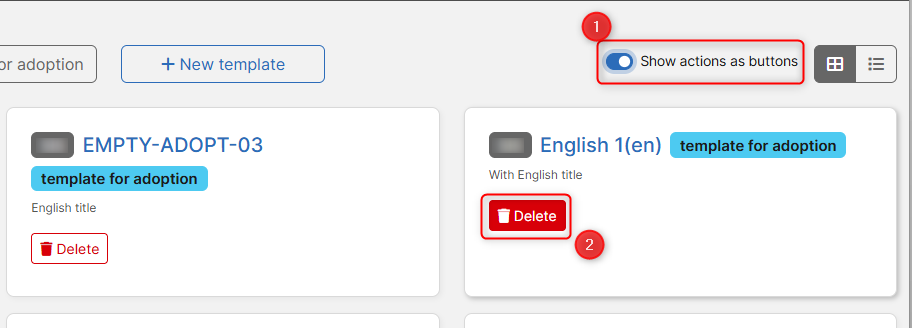
Use the slider to enable Show actions as buttons, and then click on the Delete button
Use a template in a project
Homegrown and Adoption templates are selected from the Project Creation Form.
- For a homegrown national standard project, search and select a template from the Template field
- For an Adoption project, choose Template for adoption in the From field and then select the required template. When an Adoption template is used, project metadata is not populated from an ISO XML source. The required General information must therefore be entered manually.
Read more in this article: Create national project with online document
Please note
What happens after a template is used to create an online document:
- The project's OSD document is created from the content of the selected template. After creation, the project document is independent of the template.
- Changes made later to the template do not change online documents that were already created from an earlier version of that template.