
Comments Dashboard
In this article...
Understand comments statistics (LEADER only)
Open comment details and compare contexts
Apply bulk actions on comments
Group comments using topics (LEADER only)
Classify comments using tags (LEADER only)
#Review-resolutions-and-proposed-decisions-m2UdL
This article is relevant for the following OSD Roles:
LEADER, READER
Comments dashboard overview
The Comments dashboard brings together comments and proposed changes in an online document. Use it to understand the progress of comment review, find particular comments, examine their document context, group comments into topics, apply tags, and manage resolutions. The dashboard complements the Comments panel within the online document.
You can use the dashboard to review statistics, work in a comments table, search and filter comments, inspect comment details and their context, select comments for bulk operations, manage topics and tags, and locate comments that are no longer attached to a current clause (comments overtaken by events)
Access Comments Dashboard
- Open the relevant online document in OSD.
-
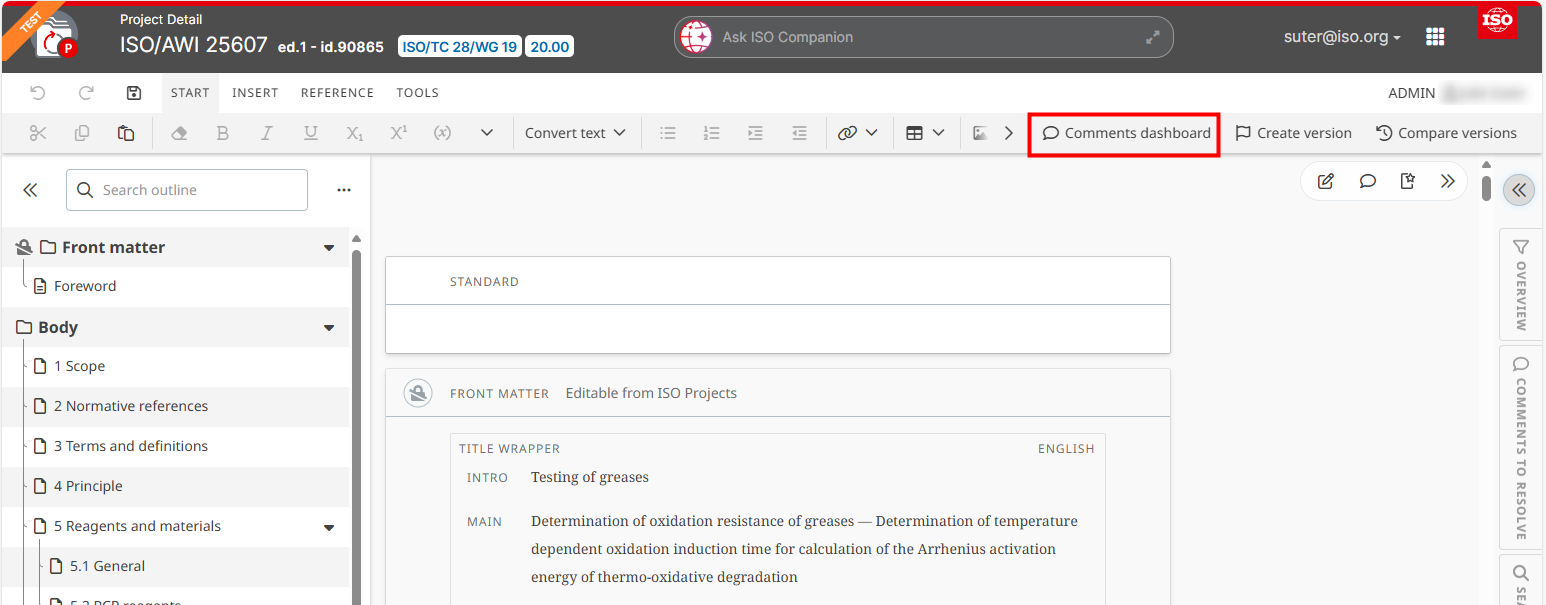
Click on Comments dashboard from the document toolbar.
-
Use the navigation icons on the left side of the dashboard to switch between these views to review and manage comments
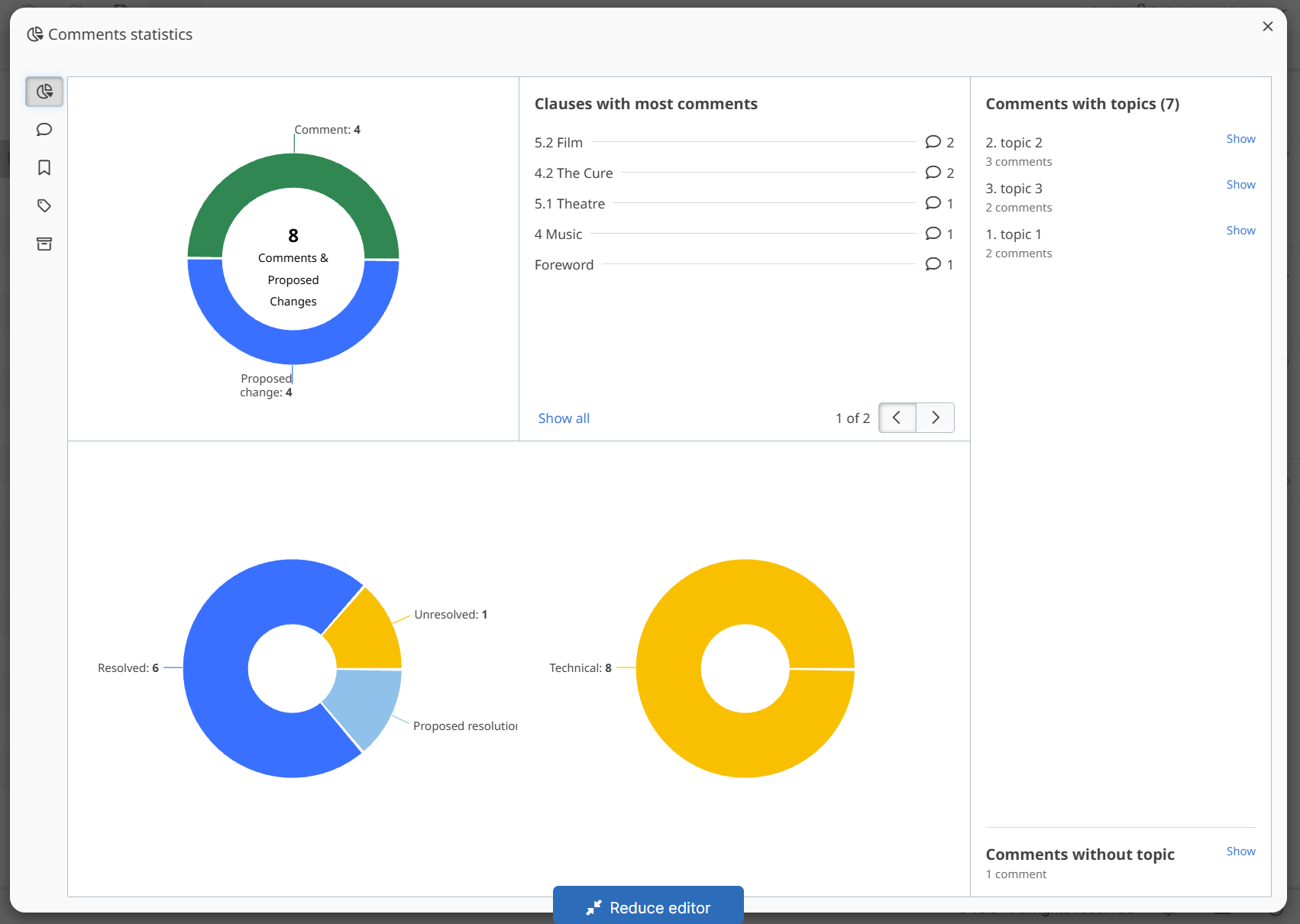
| Comments statistics | Displays statistics and charts summarizing comments, their status, and distribution. Use this view to monitor comment resolution progress. |
|---|---|
| Comments overview | Displays all comments in a table, allowing you to search, filter, sort, and review comments. You can also customize the displayed columns, view comment details and context, and perform bulk actions. |
| Topics overview | Displays topics used to group related comments. Use this view to create and manage topics and review comments assigned to each topic, and perform bulk actions. |
| Tags overview | Displays tags used to categorize comments. Use this view to create, edit, or delete tags. |
| Comments overtaken by events | Displays comments that are no longer associated with the current document structure, including comments from deleted clauses. These comments remain accessible for review even though they are no longer visible at their original location in the online document. |
Please note:
Some actions described below are available to LEADER only. In addition, other project-specific permissions may apply.
Understand the comments statistics
The Comments statistics presents visual summaries of the comments in the draft, including charts that group comments by their status or other properties. Use these charts to identify work still to be reviewed and to understand how comments are distributed across the document.
- Open the Comments dashboard and remain in the Comments statistics view.
- Review the charts and the associated counts.
- Where a Show or Show all control is provided, select it to open the corresponding comments.
Please note: Access to statistics and management actions depends on your role. The above view of the comments dashboard statistics is available only to Leaders
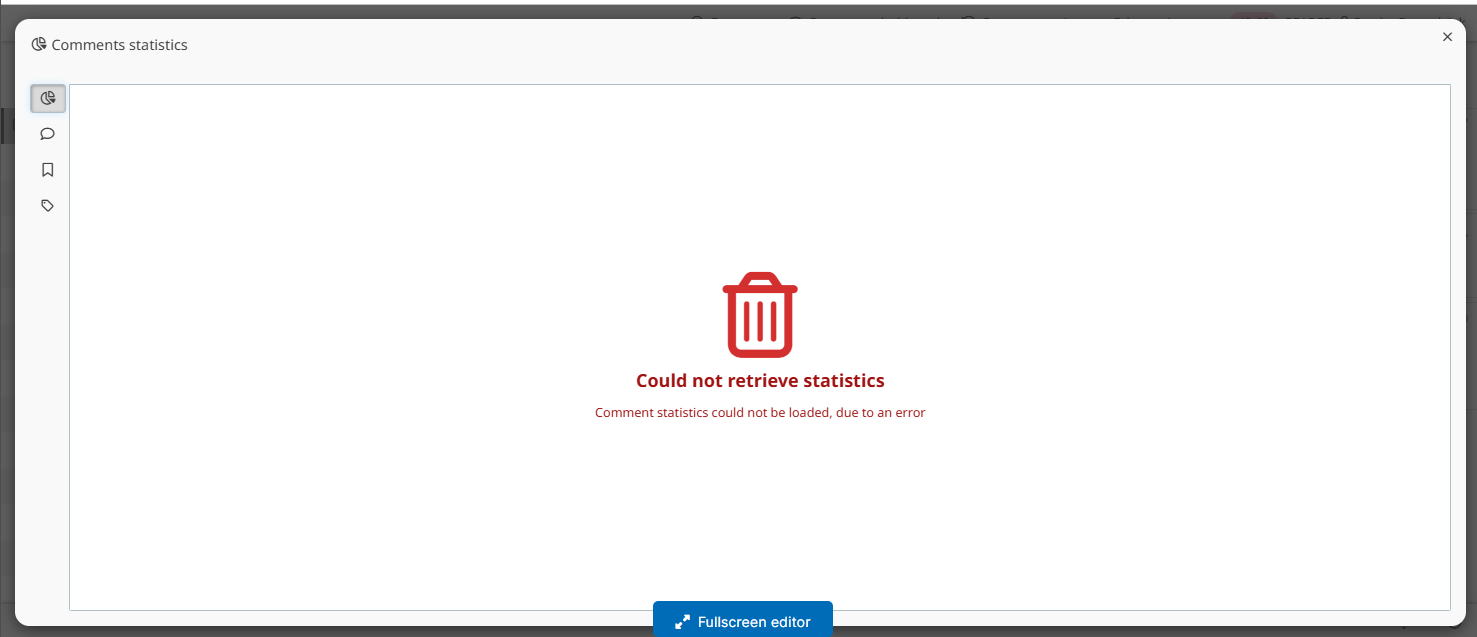
While users with the OSD role: Reader can access the Comments dashboard, the comments related statistics are not available for them to view. They see the dashboard as shown below with the message: Could not retrieve statistics. They can only use the dashboard to go to the Comments tab and view all the comments:
Review comments overview
Open the Comments overview to display comments and proposed changes in a tabular format.
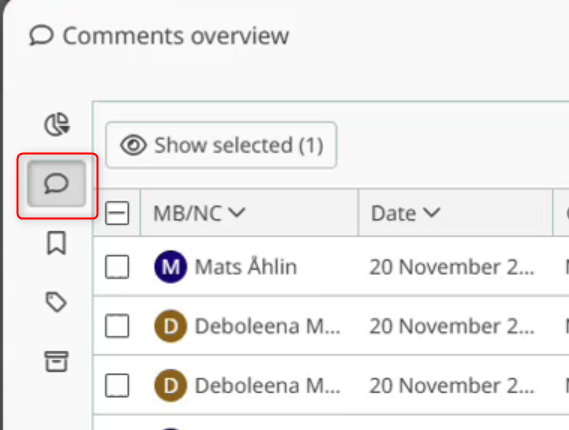

The table makes it possible to work across many clauses without opening each individual comment card.
| Table information | Purpose |
| Clause | Identify which clause the comment has been placed in |
| Type | Type of comment: GE - General, TE - Technical, ED - Editorial |
| Comment | The exact comment text |
| Proposed change | The exact change proposed along with the comment. |
| Topic | Lists the topics, the comments has been grouped under |
| Tags | Lists the tags, the comments have been associated with |
| Support | Review the number of likes/unlikes on the comment |
| Feedback | Review the number of replies received on the comment |
| Resolution | See the comment’s resolution status or proposed decision (such as accepted, noted, deferred, etc.) |
It is possible to:
- Use the table’s available column controls to show or hide fields you need.
- Sort by a column where a sorting control is provided.
- Select a comment row to view the details of the comment and the and the related context of the comment (context in which the comment was placed, and context in which the comment was resolved..
- Use the search box above the table to find comments matching the keywords entered.
- Use the filter option above the table to filter the comments as per selected criteria.
| Tip Before a comment-resolution meeting, use topics and tags to organize comments that can be reviewed together. In addition, filters on clause, comment type, resolution status fields, etc can be used to list matching comments. |
Search and filter the comments table
- In the Comments overview, click on the Filter icon.
- Select relevant criteria such as: comment type, resolution state, topics, tags, commentator, stage, document elements, date, etc.
-
Click on the Set filters button to apply your choices.
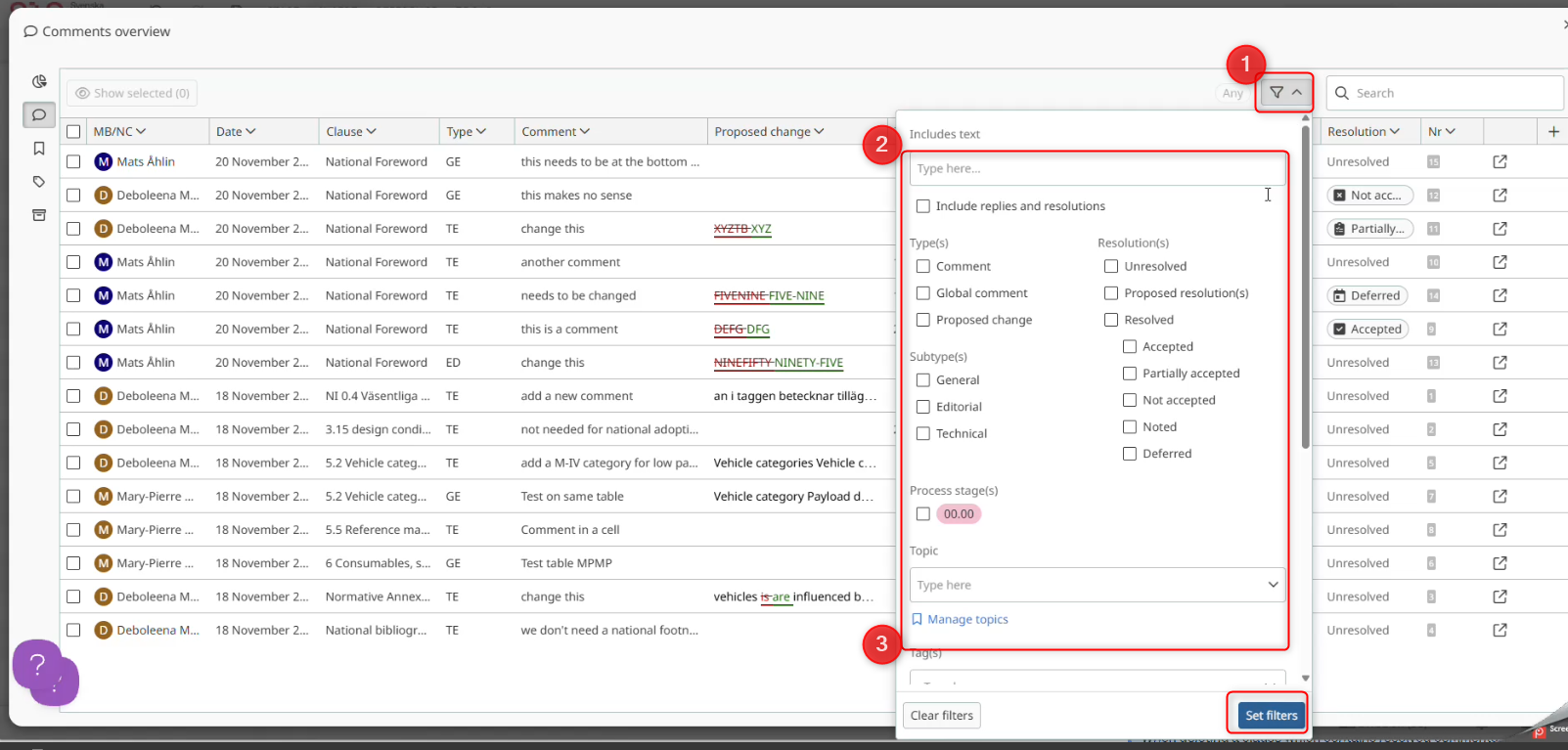
Filter panel: text, type, resolution and other criteria - Review the results in the table. The active filters appear above the results.
-
To remove one filter at a time, simply click on the cross icon next to the filter listed above the comments overview table.
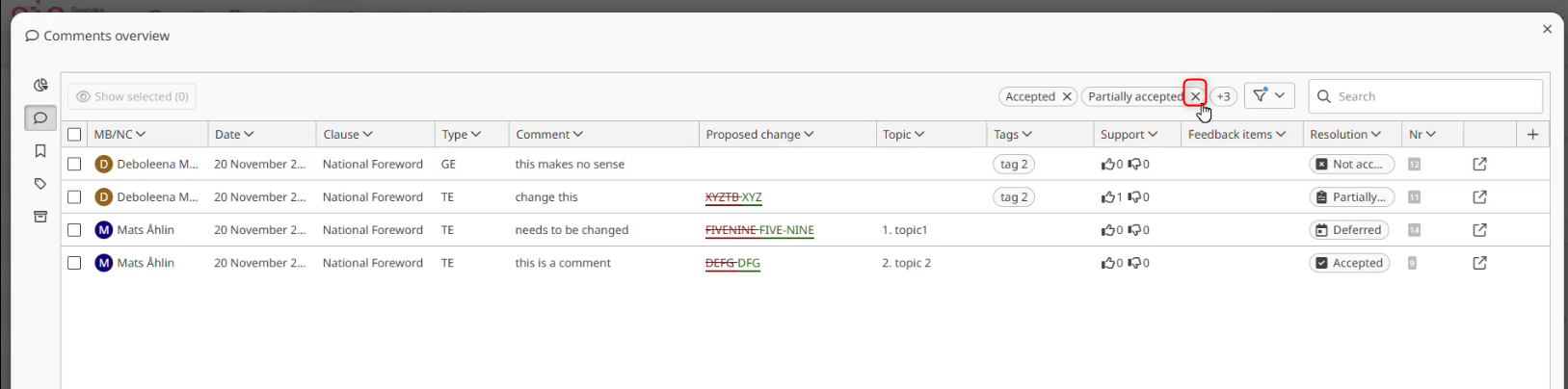
Remove one filter at a time -
Click on the Filter icon, and click on the Clear filters button to remove all filters.
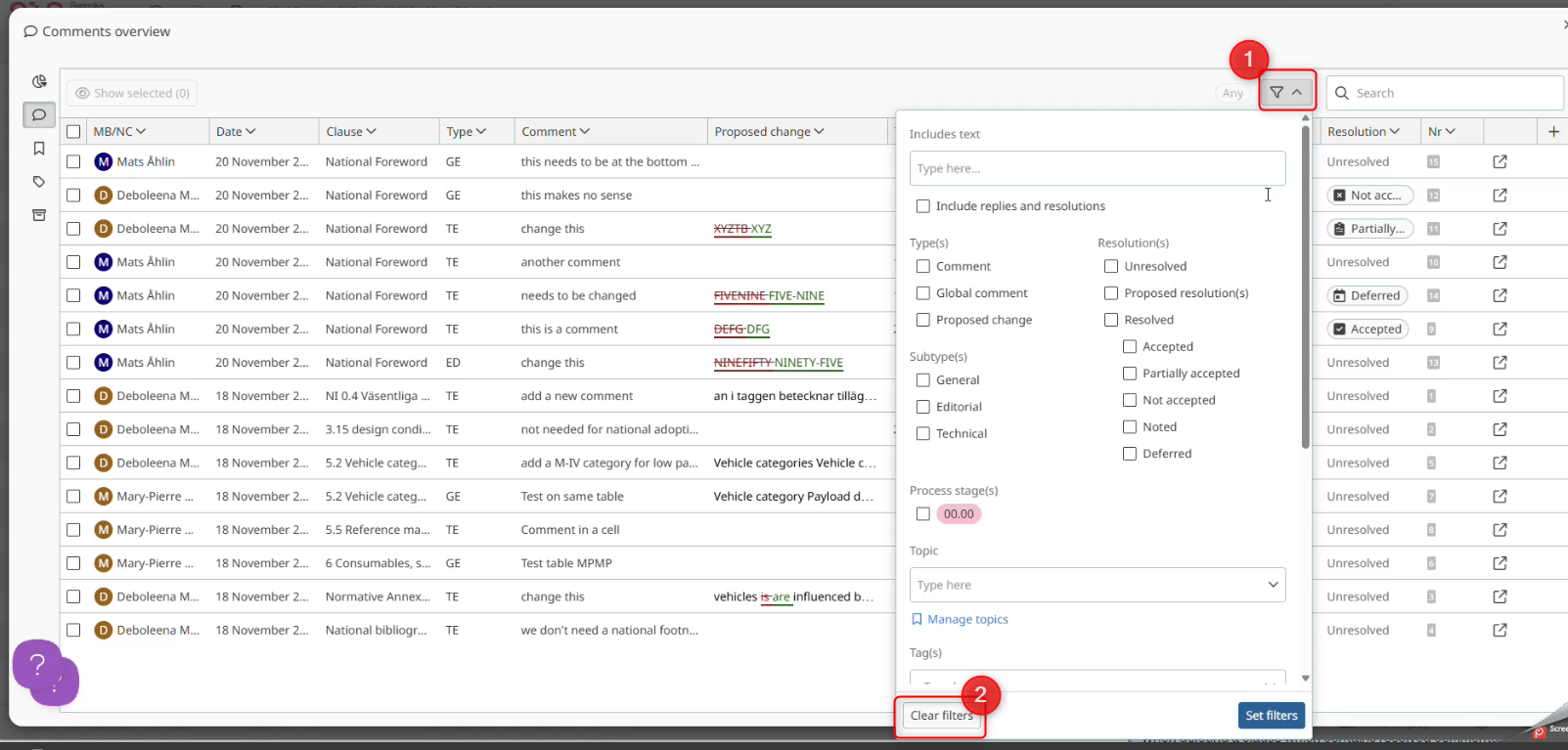
Clear all filters
Please note:
- You can combine filters to narrow a long list of comments, for example, to focus on unresolved comments under a particular topic, or on comments with a proposed decision. The available filter values depend on the data and the stage of the project.
Open comment details and compare contexts
- Select a comment row in the Comments overview.
- Use Comment details to review the comment, its proposed change, related information and any available resolution, support or feedback on it.
- Switch to Context to inspect where the comment relates to the document.
- Choose an available context view, such as
- Current context: shows the present document text on which the comment was placed.
- Created context: is useful for understanding what the text was, when the comment was placed.
- Resolved context: is available when the comment has been resolved.
These views help when the wording of a clause has changed during review.
When the dashboard offers an Open action, use it to go to the relevant comment in the online document. From there you can continue working in the document’s Comments panel.
Please note
A comment may refer to an earlier version of a clause. Always review its creation context before deciding whether the original issue has been addressed.

Apply bulk actions on comments
- Open the Comments overview and use the checkboxes next to comments to select the ones you wish to manage
- Review the number of selected comments shown in the selection toolbar.
- If needed, choose Show selected to focus on the selected items.
-
Choose an available action, such as Add tag(s), Set topic, Resolve, or Compare and follow the on-screen instructions to perform bulk actions on the selected comments.
Bulk actions are useful when several comments share one discussion topic, require the same tag or are ready for a common resolution. Review the selection carefully before confirming an action, particularly when filters are active.
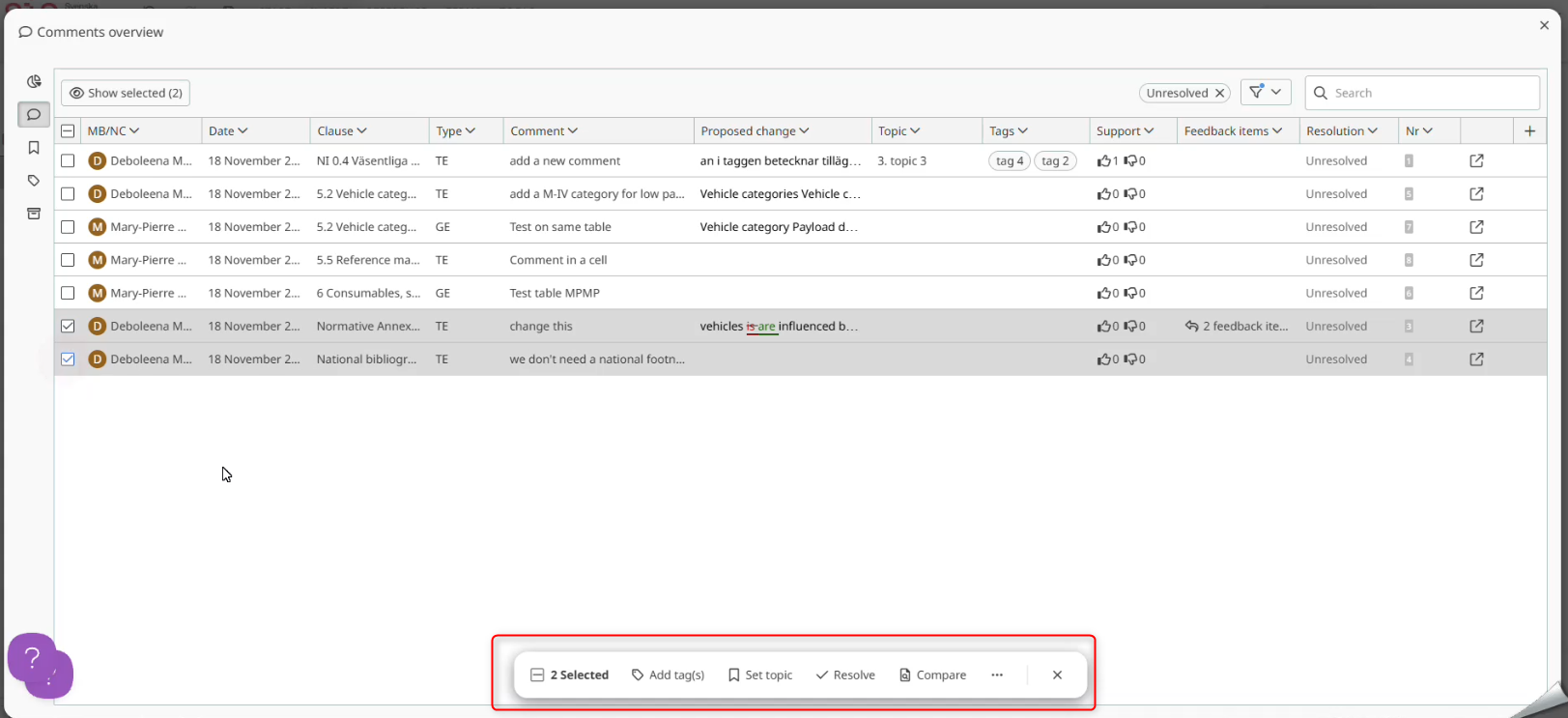
Selected comments and perform a bulk action
Group comments using topics
Topics are used to group comments into one main discussion area. They are particularly helpful when preparing agendas and reviewing related comments during a resolution meeting.
- Open Topics from the dashboard navigation.
- To create a new topic, click on New topic (available only to Leaders), enter the Title, topic Description, and click on the Save button.
- Select an existing topic to view its associated comments.
- To assign a topic to several comments, return to the Comments table, select the comments, choose Set topic, then select the appropriate topic from the dropdown list (explained above in the Bulk actions section)
You can also manage a topic from an individual comment card when your role permits it. Existing topics can be renamed or deleted using the controls provided in the Topics view.
For detailed topic management, see Manage topics to group comments.
Classify comments using tags
Tags provide a flexible way to classify comments, for example by subject or review priority. A comment can have several tags. Unlike topics, tags are not limited to one per comment.
- Open Tags from the dashboard navigation.
- To create a new tag, enter the tag name in the Create tag text field, and click on the Add button (Leaders only)
- Use the dropdown menu beside an existing tag to edit or delete it
- To apply tags in bulk, select comments in the Comments overview, choose Add tag(s), and select the relevant tags (as explained above in the Bulk actions section)
Tags can also be managed from individual comment cards. When you rename or delete a tag, the change affects the comments associated with it.
Please note
Topics and tags can no longer be edited on comments submitted to ISO/CS (green comment box), and that submitting a comment directly can remove its associated tags and topic.
Review resolutions and proposed decisions
The resolution field in the Comments table helps identify resolution status of comments, such as comments already resolved, unresolved comments, and comments with a proposed decision. Use the resolution filter to focus on a particular group.
Manage individual comments
Click on a comment to open it, and:
- Use the Thumbs up or Thumbs down icon to either support or not support the comment.
- Type your reply in the Add a feedback text box to reply to the comment
-
Click on the Resolve button where permitted, select a Decision, add a Motivation when required, and either click on the Save proposed decision button for later discussion or click on the Resolve button to confirm the resolution.
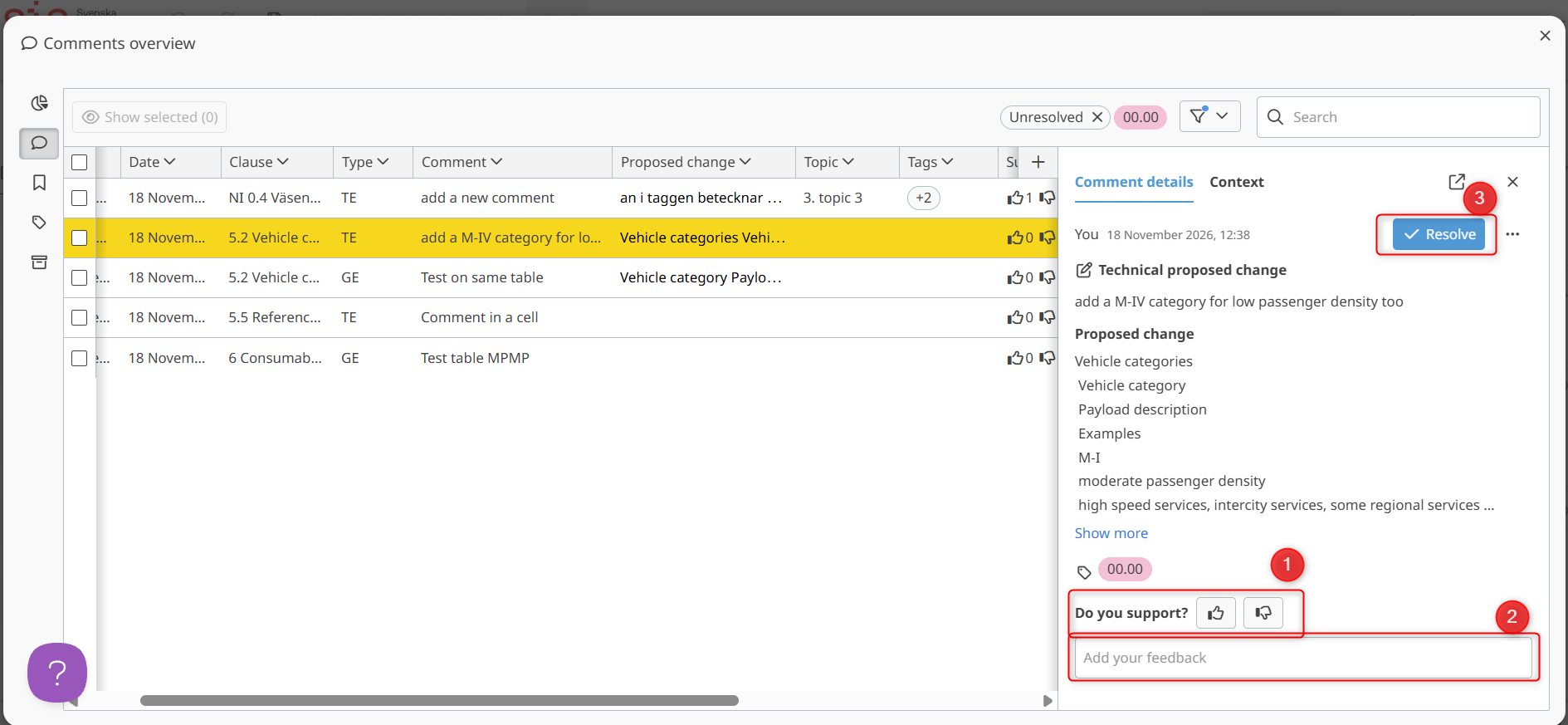
Work on an individual comment
Please note
These functionalities are exactly the same as the ones available in the Comments (previously Comments to resolve) tab in the editor. For more information, see the articles: Resolve comments, and Reply and support to others' comments
Resolve several comments in bulk
- Select the comments by clicking on the checkbox next to them in the Comments table and choose option Resolve from the bulk actions bar.
-
The bulk resolution dialog lets you select a Decision, enter a Motivation, and either Save proposed decision or Resolve them at the same time.
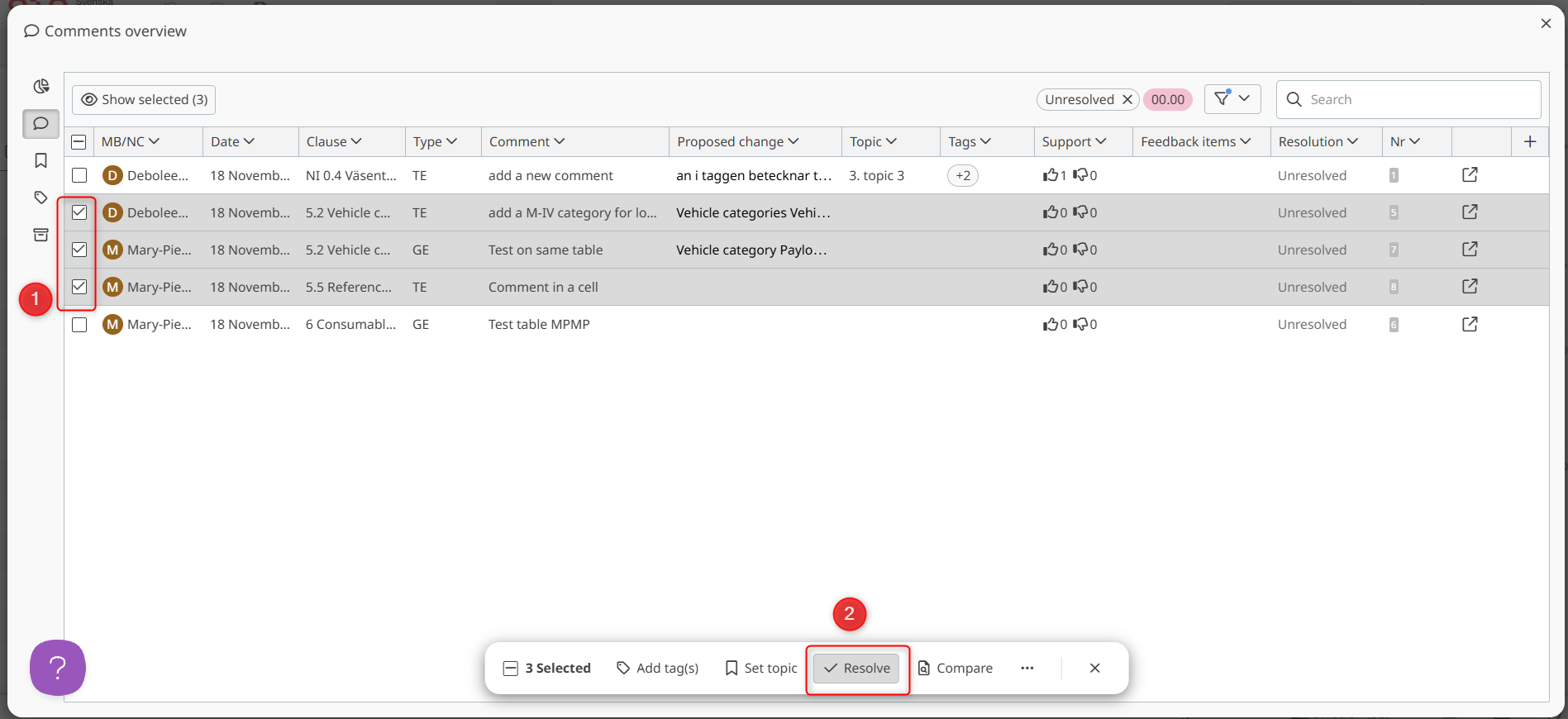
Select comments to resolve in bulk 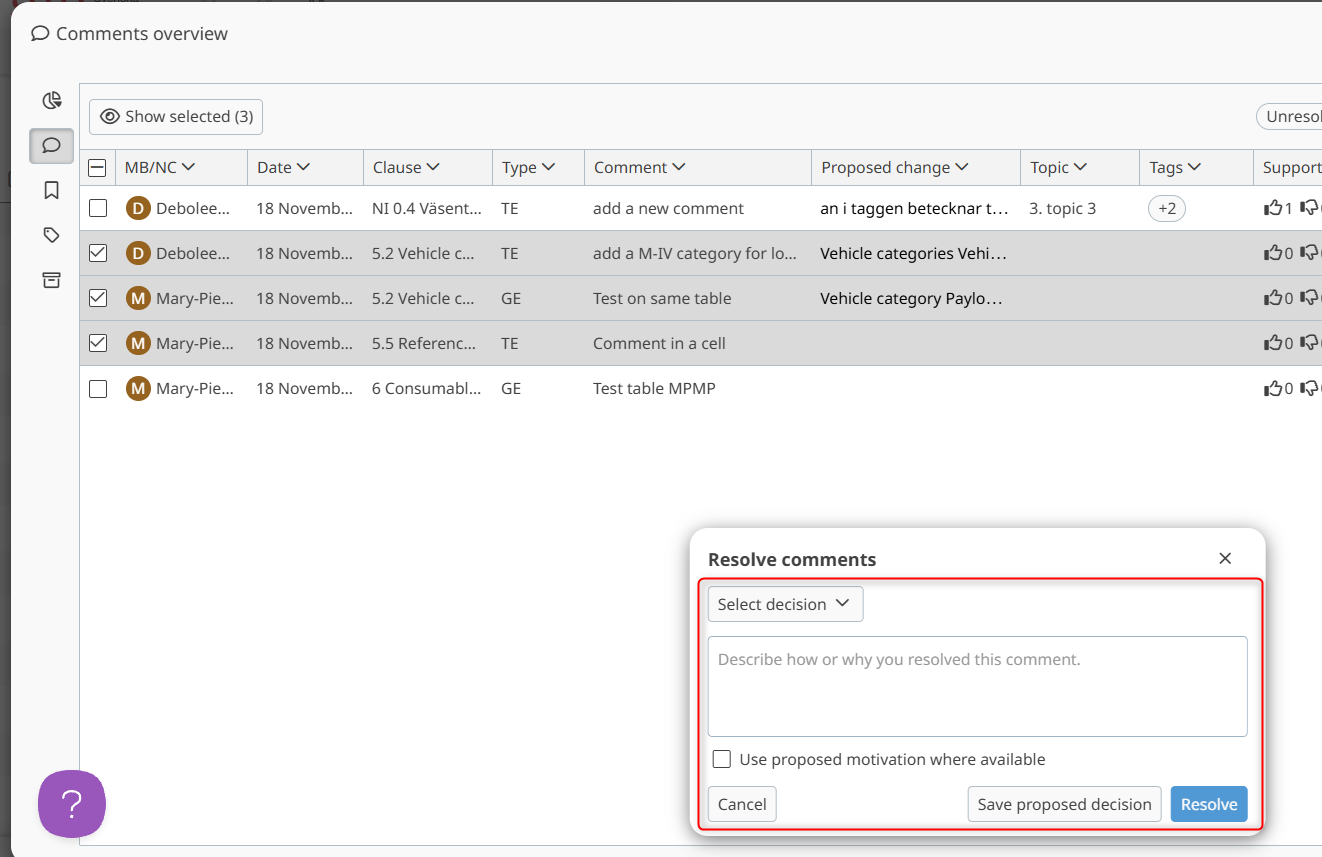
Save proposed decision or resolve
Please note
A resolution does not necessarily update the document text. For a proposed change, the change must be applied and checked; for a comment without a text proposal, any needed text edit must be made separately. See the article: Resolve comments for the full procedure.
Comments overtaken by events
A resolved comment can remain relevant to the project even when the clause or subclause to which it was attached has been deleted. Such comments are no longer visible at their former location in the online document, but can now be accessed in the Comments dashboard under the Overtaken by events section. To access these comments:
- Open the Comments dashboard.
- Select the Overtaken by events tab.
-
Review the comments available in this view, which include comments associated with deleted clauses.
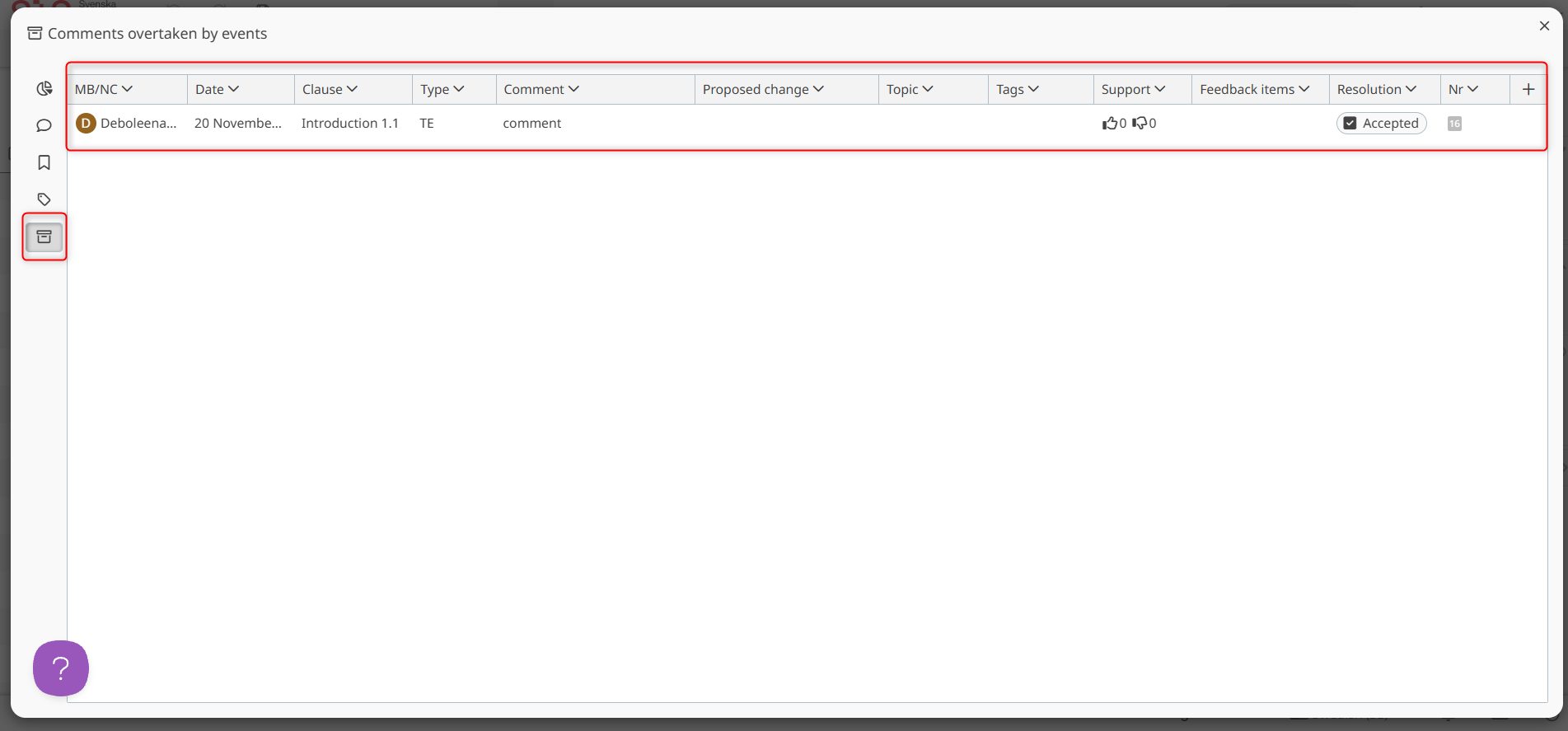
Comments overtaken by events
Please note
- Comments from deleted clauses can also be retrieved in the Export comments and resolutions report. The new dashboard access avoids relying solely on an export to retrieve them.
- A clause containing unresolved comments cannot be deleted until those comments have been resolved or moved elsewhere. The Overtaken by events view does not remove this requirement.
Comments panel in the online document
The Comments panel in the online document remains useful when you need to read a comment alongside the actual draft text.
- From the panel, expand comment cards, read feedback and support, manage permitted tags or topics, filter visible comments, and access the resolution controls.
- Use the Comments dashboard for broad review, grouping and bulk actions. In the Comments panel, you can also use the shift key in your keyboard, or first filter the comments and then use the select checkbox, to select multiple comment cards and perform bulk actions on them.
- Use the Comments panel when seeing exact wording and position in the draft (side by side) are important. When a comment is shown out of context, use the available View in create context/View in resolved context options to inspect the original content.
Please note:
The filters applied in the Comments panel are are enabled in real time to the filters in the Comments dashboard and vice-versa.
Export comments and resolutions
For offline review or reporting:
- export the comments using Tools > Other actions > Comments > Export comments.
- The Excel export includes comment identifiers, location, text and proposal fields, feedback, topics, tags, dates, resolution information and motivations, according to the export options available for your role and project stage.
You can read more about this in the article: Export comments and resolutions. Please note that the export is not a substitute for the interactive Comments dashboard; both can be useful.
Related articles:
For more information about how to manage tags and topics, view the related articles at the bottom of this page.