
Upload and submit experts comments from ISO/IEC commenting template
In this article
Demo video - upload comments from file
Upload comments from ISO/IEC commenting template
Referencing elements in uploaded comments file
- Input requirements
- How comments are attached
- Validation and requirements
- Summary of validation logic
Accepted format of referenced elements
How will my imported comments and proposed changes show in the Online document?
This article is relevant for:
Voters of NSBs who do not manage their NMCs in the Global Directory
Context
This article is relevant for voters of NSBs who do not manage their NMCs in the Global Directory.
IMPORTANT:
The upload comments from file is only available during the NP ballot, CD consultation, DIS and FDIS ballot.
During the WD Study, the WG experts must enter their comments directly in the online document. More information is available here: https://helpdesk-docs.iso.org/article/630-add-comments-and-proposals

Related articles
For more information about the process please view the article: Member commenting - getting started!
Demo video - upload comments from file
Please note:
Improved comment placement during import
The Load comments from file feature now supports more precise positioning of imported comments. When uploading an ISO/IEC commenting template, users can use the Paragraph/Figure/Table column to specify a numbered element of the OSD document (for example, a paragraph number, figure number, or table number).
When this information is provided and matches the online document structure, the system will automatically attach the imported comment to the specified element instead of placing it only at clause level.
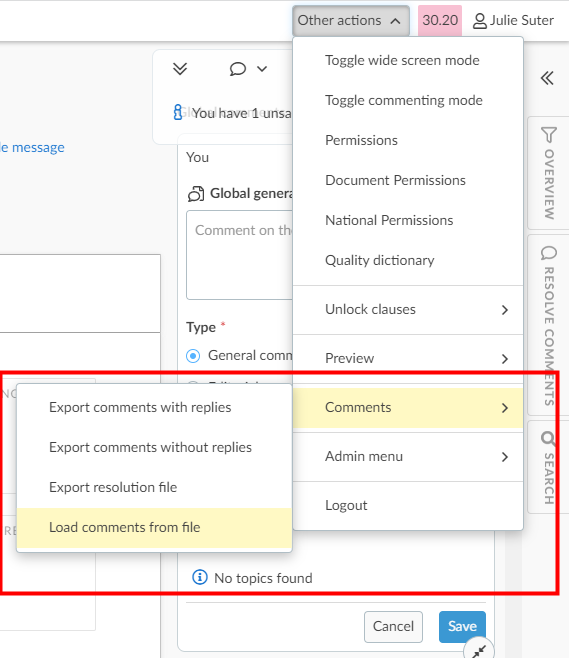
Upload comments from ISO/IEC commenting template
Referencing elements in uploaded comments file
The following rules define how referenced elements must be written in the Paragraph/Figure/Table column of the ISO/IEC commenting template when importing comments using Load from file.
Input requirements
| Category | Rules | Example |
|---|---|---|
| Exact Numbering |
|
Clause 3 Table 1 refers to Table 1 of the document, not the first table within Clause 3. |
| Elements with restarted numbering |
|
|
| Formatting must match the PDF |
|
Correct
Incorrect
|
| Case sensitivity |
|
Both Figure 1 and figure 1 are accepted. |
| Special case: Single note or example |
|
Use:
Do not use:
|
| Special case: Figure footnotes in figure groups |
|
Correct:
Incorrect:
|
How Comments Are Attached
- When important, the comments are attached to:
- the title of the referenced element, or
- the entire element if no title exists.
Validation and Requirements
- Supported content:
- Both regular clauses and term clauses are supported.
- All clauses containing referenced elements must be unlocked before importing comments.
- Blocking validation errors displayed when the comment import fails. This can happen when:
- the referenced element does not exist in the specified clause, or
- the reference is incorrectly written.
Validation logic summary:
| Category | Requirement | Result |
|---|---|---|
| Numbering | Must match document exactly | Accepted |
| Formatting | Must match PDF syntax | Accepted |
| Case | Not case-sensitive | Accepted |
| Missing/Incorrect element | Invalid reference | Blocking error |
| Locked clause | Element inaccessible | Import fails |
| Single note/example | Use unnumbered form | Accepted |
Accepted format of referenced elements
The following examples show accepted values for the Paragraph/Figure/Table column. Using these formats allows comments to attach to the correct numbered element.
| Element | Format examples in upload from file |
|---|---|
| Tables |
Table 1 Table 12 Table B.6 Table C.1 |
| Figures |
Figure 2 Figure C.1 |
| Subfigures |
Figure 3 a) Figure 5 c) Figure D.2 d) |
| Formulae |
Formula (1) Formula (2) Formula (C.1) |
| Numbered list elements |
List item a) List item b.1) List item c.2.ii.a) |
| Notes |
Note 1 Note 4 Table 4 Note 1 Note 1 to entry (for terms) Note 2 to entry (for terms |
| Examples |
Example 2 Example 5 Example (if there is only one in the clause) |
| Footnotes |
Footnote c Footnote h |
| Table footnotes |
Table 2 footnote a Table 2 footnote d |
| Table notes | Table 4 note 1 |
| Figure footnotes |
Figure 3 footnote 1 Figure 3 footnote 3 |
| Figure notes | Figure 3 note 2 |
| Formula notes | Formula 2 note 1 |
1 Choose a file
Select the commenting template to be uploaded from your device using "Browse my computer" or by dragging and dropping the file directly.

2 View the upload result report
The Upload result report will tell you if any rows in the file contain information that cannot be uploaded to the platform. The validation rules are the same as when the commenting template is submitted via the balloting application.
Related articles
For more information about the commenting template and supported format please view this article: Commenting template guidelines
In the upload result section, you will see if the commenting template includes invalid data and in which row.
Warning
You cannot upload the comments unless you resolve the errors.
In the section validation on rows, in the Errors column, you can see which rows are invalid and why. To proceed, correct the error in the document and upload the file again.

Voters can also export the error report to send it back to the National Mirror Committee (NMC) Secretary if necessary.

Errors on clause number/label and guidelines
If the clause number does not match the clause or subclause number in the online document, the system returns an error as it doesn't know where the comment(s) belong in the document.
For General comments (comments on the overall document), the Type should be General and the Clause column should be "empty"
For comments on the Introduction section, the Clause column should contain the word Introduction (as in the above screenshot). Note that the Introduction contains some sub-title called 0.1 General; 0.2 Quality Management Principles etc... Those sub-section are title and not sub-clause and therefore they cannot be referred to in the Clause column.
Errors related to Paragraph/Figure/Table references
When the Paragraph/Figure/Table column is used in the commenting template for uploading comments, the value must correspond to an existing numbered element in the online document.
The system validates this information during upload:
- If the referenced paragraph, figure, or table exists, the comment will be attached to that element.
- If the value does not match any numbered element in the document, the system returns a validation error.
To resolve the error:
- Verify the numbering used in the online document.
- Correct the value in the commenting template.
3 Import Comments
Voters can either choose to import the comments and review the comments in the online document before submission to ISO. Or to import and submit the comments directly.
To review comments before submission, the Voter must click on Import and review before submission. Otherwise, to make comments national directly, the Voter must click on Import and submit comments.

Once the comments have been uploaded you will see the message: Comments have been successfully uploaded.
Please note:
Best practice
To reduce manual work after import, ISO recommends completing the Paragraph/Figure/Table column in the commenting template whenever experts reference a specific numbered element of the document.
Warning
Placement of imported comments
Imported comments are placed according to the information provided in the commenting template:
- If the Paragraph/Figure/Table column is completed with a valid numbered element, the comment is automatically attached to that specific element in the online document.
- If this column is empty or cannot be validated, the comment is attached to the title of the clause.
After import, voters can still move comments manually if needed.
Related articles
For more information about how to Move comments, view relevant article from the related articles section below.
For more information about how to Submit comments to ISO, view relevant article from the related articles section below.
How will my imported comments and proposals show in the online document?
The import of comments in OSD from the ISO/IEC Commenting template is an option for members who do not manage their NMC in the Global Directory. As the NMCs' experts do not have an ISO account, they cannot comments directly in the online document and therefore comments have to be imported. However, this option has some limitation due to the difference in technology.
1. Comment placement during import
Comments imported from the ISO/IEC commenting template are positioned based on the information available in the template:
- When a valid value is provided in the Paragraph/Figure/Table column, the comment is attached directly to the corresponding numbered paragraph, figure, or table in the online document.
- When no value is provided, or when the value cannot be matched, the comment is attached to the title of the clause.
As online documents do not use line numbers, paragraph or element numbering provides the most precise automatic positioning available.
Note that the comments without any text in "Proposed change" column are imported as regular comments.
Voters may still move comments manually after import if adjustments are required.


2. Import proposed changes
When importing comments that contain content in the "Proposed change" column, the values in "comments" column with values in "Proposed change" column are concatenate.


Why are proposed changes imported as comments?
Because the propose changes feature of the editor enables commenters to select part of the text and propose changes in track change mode. When the comments are imported as “proposed changes”; the text highlighted for change is the title of the clause.
For example:
Imports as:

Even moving the comment to the correct location does not produce the expected result:

-
Importing rich text
It is not possible to import formatting (bold, strikethrough...) made in the commenting template in an online document. When uploading a commenting file, the system now checks for formatting issues.
Strikethrough or double strikethrough text is not allowed, as it loses meaning when removed. If detected, the upload will be blocked, and you must remove the strikethrough before proceeding.

Other rich text formatting (bold, italics, underlining, colors, superscript, or subscript) is allowed but will be removed upon upload. A warning will notify you, but the upload will not be blocked.
