
Manage profile and roles
Access
To manage your profile, access the Home portal (sd.iso.org). From the left navigation menu, click on My profile.
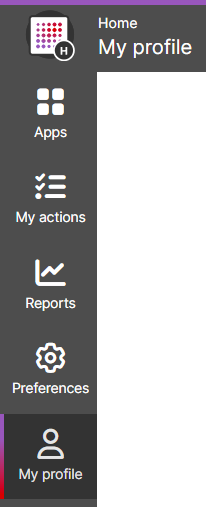
View your personal information
Your personal information can be viewed and updated from this section. This includes
- Last name
- First name
- Salutation
- Title
- Username: you cannot update your username from this page. Instead, from the top right corner, click the Update my username button to contact your user administrator by email.
- Notification: this value can is used by our services for other members of the community to contact you in the context of standardization activities.
Update your personal information
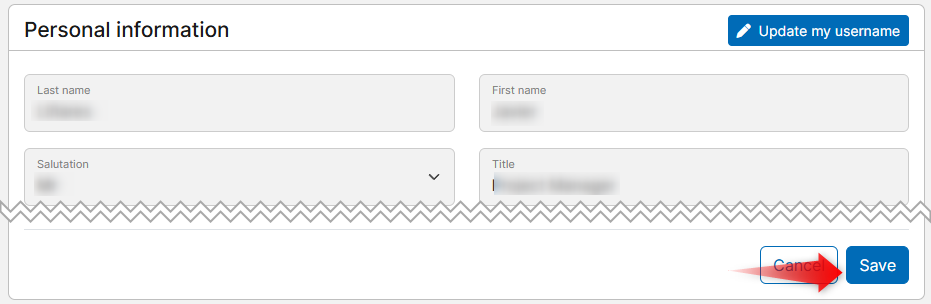
To update your last name, first name, salutation, title or notifications email, simply update the value in the text field and click the Save button.
Please note
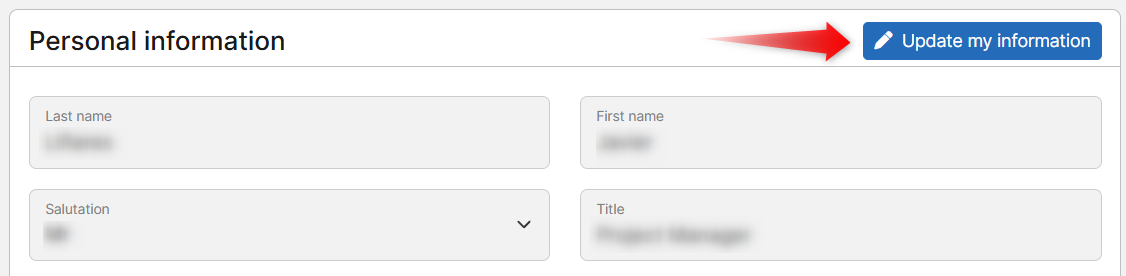
If your account is administrated by AFNOR, BSI, DIN, DS, JISC, NEN, SCC, UNI or IPQ, your personal information is managed by one of these organization and cannot be updated from this page. From the top right corner, click the Update my information button to contact your user administrator and have this information updated.
Update your username
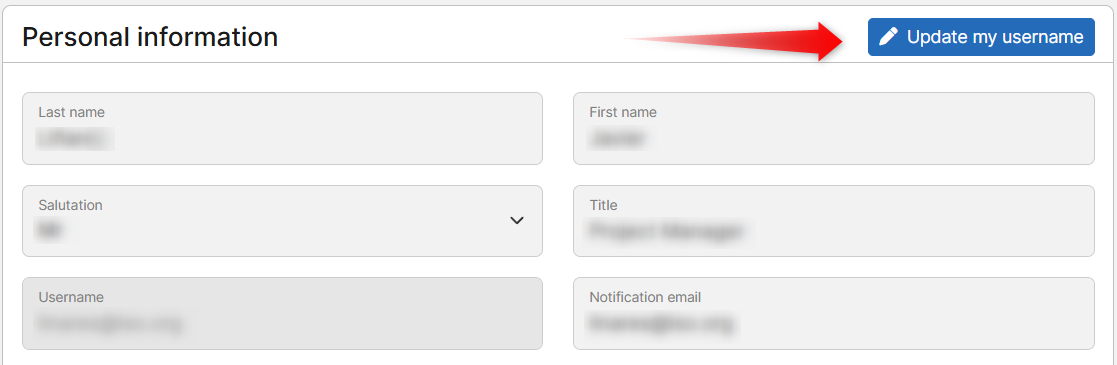
You cannot change your username yourself. Instead, from the top right corner of the Personal information widget, click the Update my username button to contact your user administrator.
Roles
This widget lists the roles currently associated to your profile. This may include:
- Committee roles. This includes the following information:
- Organization responsible for this committee (ISO, CEN or a National Standards Body)
- Role name (read more about available roles)
- Associated committee
- Project roles. This includes the following information:
- Role name
- Project reference
- Project title
- Organization roles (including centralized roles) This includes the following information
- Role name (e.g. "employee of", "User administrator", "Centralized Ballot monitor" etc.)
- Acronym and name of the related organization
- Groups you are part of. This includes the following information:
- Group name
- Group description
Permissions
Depending on the application, your roles will grant different permissions. To determine your permissions based on your roles, please refer to the following articles:
- Documents permissions
- Ballot permissions
- Meetings permissions
- Online Standards Development permissions
- National Project Portal permissions
Update roles
You cannot change your roles yourself. Instead, from the top right corner of the Roles widget, click the Update my roles button to contact your user administrator.

Please note
If you identify roles in groups you are not involved in anymore, we strongly recommend you to contact your user administrator to have these removed. This will limit the amount of notifications received related to the group work.